How to Remove Copyright Restrictions from PDF Files

TL;DR
- Distinguish between User Passwords and Owner Password restrictions.
- Understand the impact of ADA Title II on document accessibility.
- Learn to unlock PDFs for editing, printing, and copying.
- Identify workflow tools to bypass grayed-out PDF toolbars.
- Ensure legal compliance while regaining control of your documents.
We’ve all been there. It’s 4:55 PM. You open a PDF to highlight a crucial paragraph or fix a glaring typo, and… nothing. The toolbar is grayed out. You hit Ctrl+P, and the printer icon just laughs at you.
You aren't locked out of the file—you can read it just fine—but you are locked out of using it.
Welcome to "Permission Password" purgatory.
With the April 24, 2026 deadline for ADA Title II compliance breathing down everyone's necks, this isn't just a nuisance anymore; it’s a massive liability. Organizations are currently scrambling to unlock terabytes of legacy archives to fix tagging and reading order for accessibility. Here is the hard truth: if you can't edit the file, you can't make it compliant.
Let’s get one thing clear before we dive in. We are talking about workflow efficiency and accessibility—like fixing a document so a screen reader doesn't choke on it. We aren't here to help you pirate bestsellers or steal intellectual property. We are here to help you take back control of your own documents.
Here is how to break the locks.
Owner Password vs. User Password: The "Bouncer" vs. The "Chaperone"
Before you start downloading sketchy utilities from the dark corners of the internet, you need to know what you are actually fighting. In the PDF security world, people mix these two up constantly. It is the number one reason they fail to unlock their files.
- User Password (The Bouncer): This is the heavy lifting. If you don't have the code, you don't get in. The file is encrypted at the byte level. The contents are scrambled until you type the password. If you can't open the file to read it, this guide won't help you. You need a password cracker, not a restriction remover.
- Owner Password (The Chaperone): This is the nagging restrictions flag. You are allowed inside the club, but you can't touch anything. You can read, but you can't print, copy text, or edit pages. The file isn't fully encrypted in the same way; it just has a specific "bit" flipped that tells your PDF reader to disable certain buttons.
We are focusing on the Owner Password.
If you want to geek out on the technical specifics of 128-bit vs. 256-bit AES encryption, check out our guide to PDF security. But honestly? You just need to know if you can fix it. Use this flowchart:
Method 1: The "Print to PDF" Hack (Quick & Dirty)
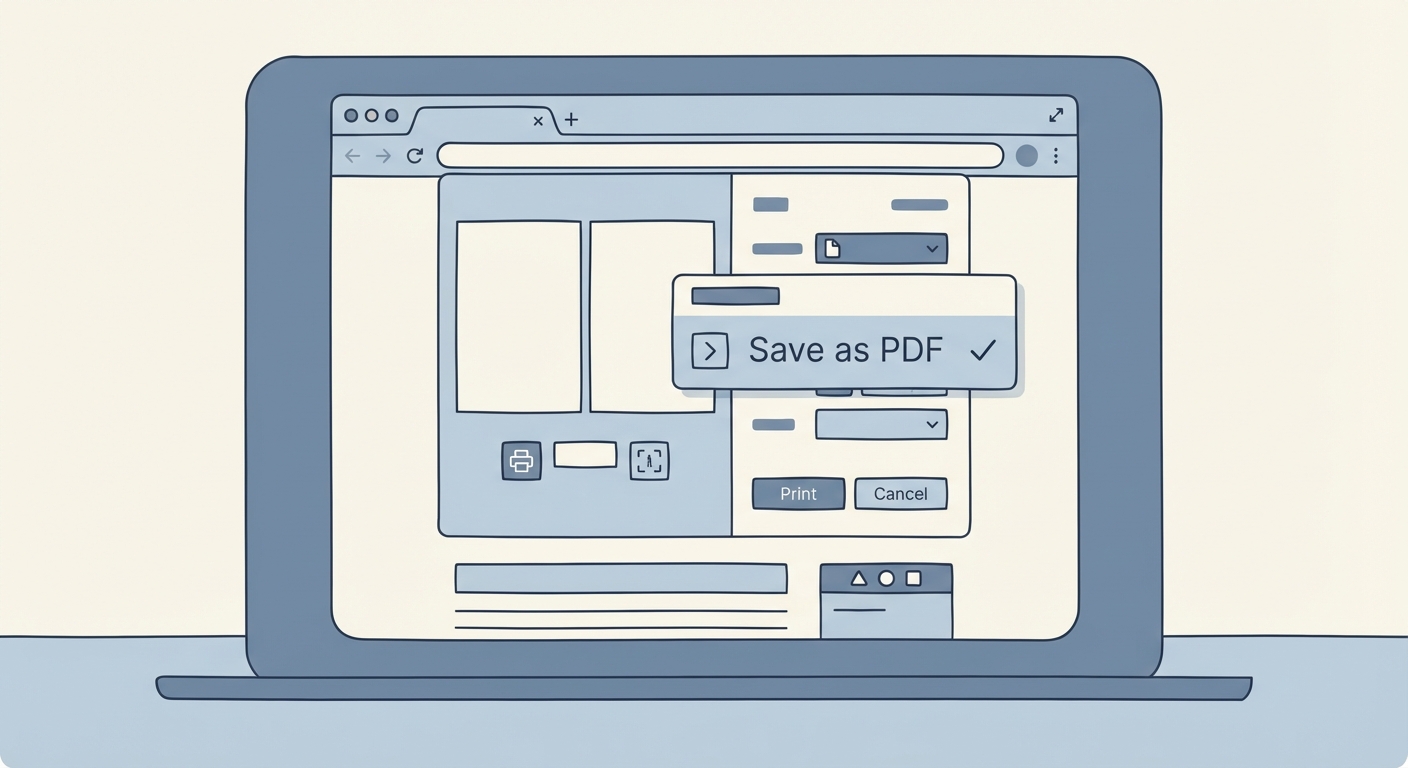
If you need a fix right now and don't care about the finer details, this is your move. It works because browsers like Google Chrome and Microsoft Edge have their own internal PDF engines. These engines often ignore the "No Printing" flag, or at least handle it loosely enough to let you bypass it.
The Logic: You aren't technically "unlocking" the original file. You are creating a brand new copy—a digital recording—of the file that never had the password to begin with.
The Steps:
- Open your restricted PDF in Google Chrome or Microsoft Edge. (Right-click the file > Open With > Chrome).
- Click the Print icon (or smash
Ctrl+P/Cmd+P). - In the destination dropdown, change the printer from your physical office machine to "Save as PDF" or "Microsoft Print to PDF".
- Hit Save.
The Catch (And it's a big one): This is a "destructive" method. Since you are essentially taking a digital photo of the document, you strip away the intelligence of the file. It’s like taking a screenshot of a spreadsheet; it looks the same, but the formulas are gone.
- Hyperlinks: Broken.
- Bookmarks: Gone.
- Metadata: Erased.
- Image Quality: Often compressed or rasterized (pixelated).
If you are just printing a form to sign it physically? Perfect. Go for it. But if you are archiving a legal document or preparing a report for ADA Title II compliance, do not use this method. It destroys the tagging structure you need for accessibility, effectively putting you back at square one.
Method 2: The "Official" Way (Adobe Acrobat Pro)
If you are working in a corporate environment, check your app list. You might already have the keys to the castle. Adobe Acrobat Pro (the paid version) is the gold standard for handling these permissions properly without nuking your file's metadata.
This method assumes you either know the permission password or you are the document owner and the restrictions are a legacy setting you need to purge.
- Open the file in Adobe Acrobat Pro.
- Navigate to the Tools tab and find Protect.
- Click on Encrypt in the top bar, then select Remove Security.
- Scenario A (Open Password): If the file has a User password, you must type it to proceed.
- Scenario B (Permissions Password): Acrobat will ask for it. If you don't know it, this method stops here.
This is the cleanest, most professional way to handle the file. It keeps your layers, vector graphics, and accessibility tags intact. It’s the surgical scalpel compared to the "Print to PDF" sledgehammer. For more on the official protocols, consult the Adobe Acrobat User Guide on security.
Method 3: The Mac Loophole (Preview App)
Mac users have a secret weapon built right into the OS: Preview.
Apple's PDF rendering engine handles files differently than Adobe's. It offers a "soft" way to strip permissions that is usually much higher quality than the browser hack. It’s a weird quirk of the OS, but we’ll take it.
The Workflow:
- Open the restricted PDF in Preview.
- Go to File > Export (Do not choose "Export as PDF" or "Print"—this is specific).
- Select PDF as the format.
- Crucial Step: Ensure the "Encrypt" checkbox is unchecked.
- Save the file.
Because Preview is rewriting the file structure during the export, it often drops the owner restrictions in the process. It’s a native, free solution that usually retains better vector quality than Chrome.
Method 4: The Developer Option (QPDF)
This section is for the SysAdmins and Developers who just rolled their eyes at the idea of opening files one by one. If you have a server with 5,000 legacy PDFs that need to be unlocked for a database migration, you aren't going to use "Print to PDF."
You need QPDF.
QPDF is an open-source command-line tool that performs structural transformations on PDF files. It is widely loved because it can decrypt files without re-compressing streams. That means zero quality loss. None.
The Command: Once you have QPDF installed (via Homebrew on Mac or Chocolatey on Windows), the command is brutally simple:
qpdf --decrypt input.pdf output.pdf
That’s it. It reads input.pdf, ignores the owner password restrictions (because QPDF is designed to help developers look at PDF internals), and writes a clean output.pdf.
For batch processing, you can wrap this in a simple bash loop. If you need the documentation or installation binaries, check the QPDF documentation.
Method 5: Online Unlockers vs. Desktop Tools (A Privacy Warning)
You have seen them. "FreeOnlinePDFUnlocker.com". They promise magic. You upload your file, wait ten seconds, and download the unlocked version.
Stop.
Think about what you are doing. You just uploaded a contract, a tax return, or a confidential internal memo to a server somewhere in the world (often not in your legal jurisdiction). How are they paying for that server cost?
Usually by selling data or serving aggressive ads.
- Online Tools: Fine for a lunch menu or a flyer. Absolute madness for a bank statement or medical record. Most legitimate businesses cannot use these due to GDPR, CCPA, or corporate data governance policies.
- Desktop Tools: This is the only safe route for sensitive data. The processing happens "locally" on your machine. The file never leaves your hard drive.
If you need a secure, private way to remove restrictions and immediately edit the file without sending it to the cloud, try our all-in-one PDF Editor. It keeps your data air-gapped and secure.
Troubleshooting: "I Unlocked It, But I Still Can't Edit."
You followed the steps. The password is gone. You open the file, try to select the text, and... nothing. The cursor acts like it's hovering over a picture.
That’s because it is a picture.
Many restricted PDFs are "flat" scans—photos of paper documents wrapped in a PDF container. Removing the password doesn't magically turn a photograph of text into editable text. It just gives you permission to edit the photograph.
The Fix: You need OCR (Optical Character Recognition). This technology scans the image, recognizes the shapes of letters, and converts them into selectable, searchable text. If your unlocked PDF is just a stubborn image, use our OCR tool to make the text searchable and editable.
FAQ: The Questions You Were About to Ask
1. Is it illegal to remove PDF restrictions? Generally, no—if you have the right to access the file. If you are unlocking a manual you bought so you can read it on your Kindle, or fixing a file for internal accessibility compliance, that is usually considered fair use or interoperability. However, removing protection to infringe copyright or distribute stolen content? Yeah, that's illegal. Don't do that.
2. Does "Print to PDF" lower the quality of my document? Yes. It’s a brute-force method. It often rasterizes high-quality vector images (making them pixelated) and completely removes interactive elements like hyperlinks, bookmarks, and form fields. Use it as a last resort.
3. What if I don't know the permission password? If you are the owner, you can use recovery tools to brute-force the password (since owner passwords aren't usually as complex as user passwords). If you aren't the owner, and the "Print" trick doesn't work, you might be out of luck—or violating the file's terms of use.
4. Can I remove restrictions on iPhone or Android? Yes. The "Print" trick works on mobile too. Open the PDF in your mobile browser, select Share > Print, and then pinch-to-zoom the preview (iOS) or select "Save as PDF" (Android) to save a new, unlocked copy to your Files app.
5. Why do governments restrict PDFs if they need to be accessible? It’s often a legacy habit. Ten years ago, locking a file seemed like "good security practice." Today, with the 2026 ADA deadline approaching, agencies are realizing those old locks are preventing them from fixing accessibility tags, forcing a massive wave of unlocking and remediation. Ideally, public-facing documents should be read-only but accessible, not locked down with permissions that break screen readers.