Which PDF Readers Support Copy and Paste?

TL;DR
- Identify if your PDF is a scanned image or restricted.
- Use Chrome or Edge for simple text extraction from true PDFs.
- Apply OCR tools to convert images into selectable text.
- Learn to bypass security restrictions and fix encoding errors.
- Choose the right software based on your specific document type.
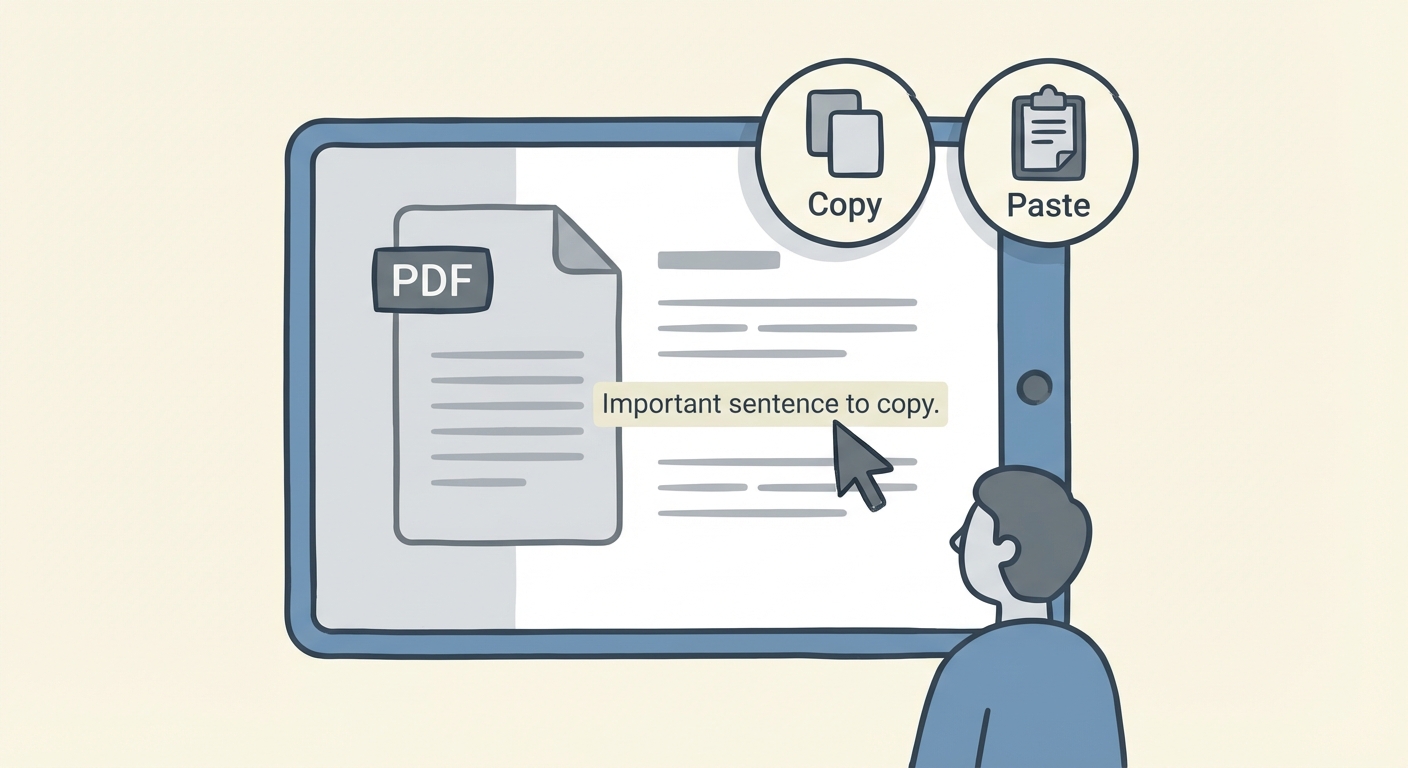
You know the feeling. You need one specific sentence from a report. You hover your cursor over the text, click, and drag.
Nothing happens.
Or worse, the entire page turns blue like you just selected a massive photograph. Maybe you actually manage to copy it, but when you paste it into an email, it looks like a string of alien hieroglyphics: □□□H3ll0 W0rld□□.
It’s 2026. Your phone can identify a rare plant species from a blurry photo, yet copying a paragraph from a PDF invoice often feels like hacking into a mainframe from the 90s.
Here is the cold, hard truth: "Copy and paste" isn't just about the software you use to read the file. It is about the DNA of the file itself.
Over 2.5 trillion PDFs exist worldwide, and according to the PDF Association, they remain the global standard for digital documents. But they aren't all created equal. Some are born as text (Vector), some are born as pictures (Raster), and some are locked behind digital walls.
If you are struggling to extract data, the problem likely isn't your mouse. It’s the file. This guide will diagnose exactly why your text is stuck and show you the specific tools—from free browsers to AI-powered extractors—to set it free.
The Diagnosis: Why Can't I Select Text in My PDF?
Before you go downloading a dozen different "PDF Readers," stop. Put the mouse down. You need to identify the root cause. Software can’t fix a problem it doesn’t understand.
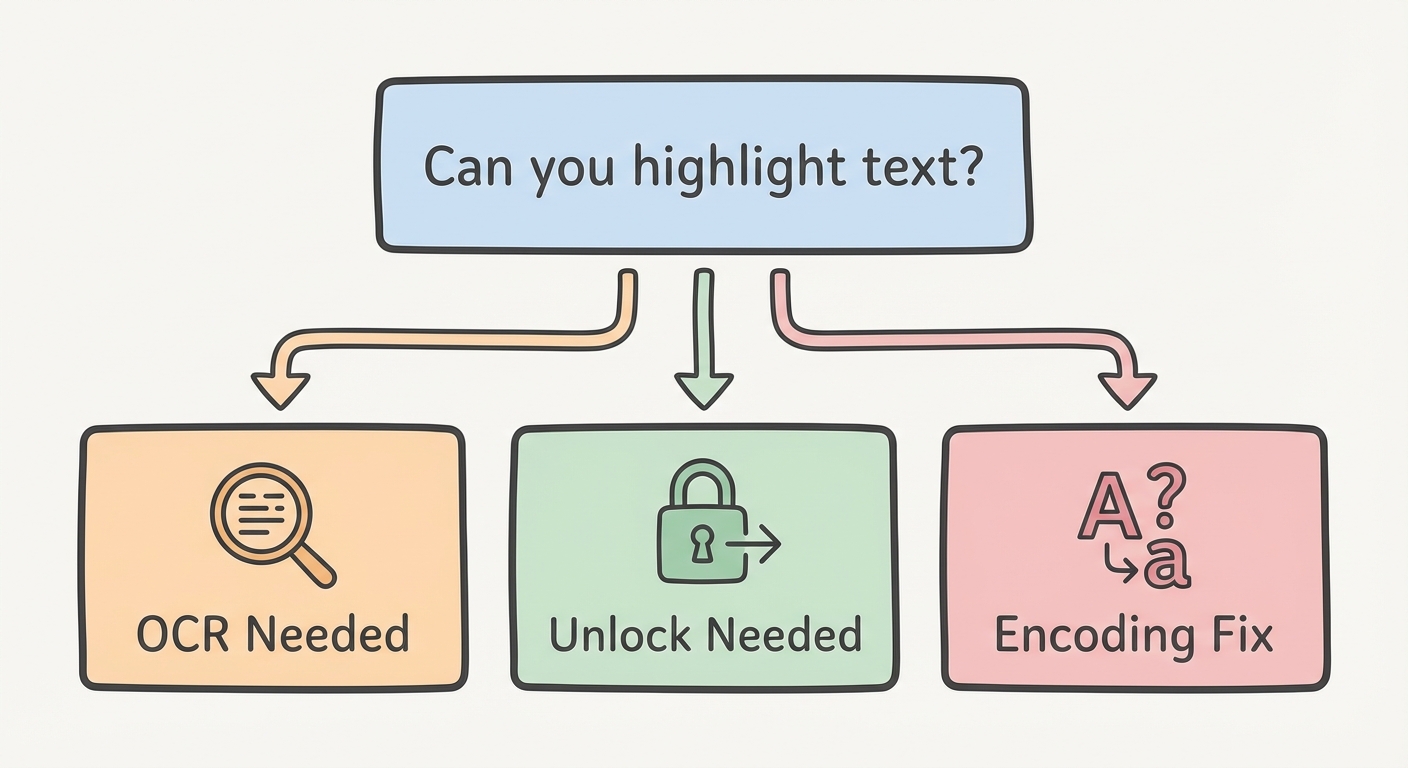
There are generally three barriers standing between you and that paragraph:
- The "Scanned" Trap: This is the most common headache. The document looks like text to your eyes, but to the computer, it is a single, flat image. It’s a photograph of a paper document. You can't select the words for the same reason you can't copy the text off a JPEG of a stop sign.
- The "Security" Wall: The author has applied restrictions. You can open the file and read it, but an "Owner Password" prevents you from modifying or copying the content.
- The "Corrupt" Code: You can select the text, but the result is garbage. This is a font encoding error. The PDF has the visual picture of the letter 'A', but it lacks the keystroke map to tell your clipboard that it is an 'A'.
Use this logic flow to figure out which solution you need right now:
Best Free PDF Readers for Standard Copy and Paste
If you are dealing with a "True PDF"—one created from Word, Google Docs, or InDesign—the text is already there, living as selectable vector data. You just need a reader that doesn't get in your way.
Here are the best free options for simple, no-nonsense text extraction.
1. Web Browsers (Chrome & Edge)
You likely already have the best basic PDF reader open right now. Modern browsers like Chrome and Microsoft Edge have robust, built-in PDF engines. They are fast, lightweight, and handle standard text selection better than many bloated desktop apps.
The "Print to PDF" Hack: Here is a trick most people miss. If you are struggling to copy text because of weird formatting or minor security glitches, try this in Chrome:
- Open the PDF.
- Hit Print (Ctrl+P / Cmd+P).
- Change the destination to "Save as PDF".
- Save it as a new file.
This process "flattens" the document and re-encodes it. It often strips away minor permission layers or fixes broken text streams, making the new copy fully selectable.
2. Adobe Acrobat Reader DC (The Standard)
Adobe Acrobat Reader is the industry standard for a reason. It handles complex formatting better than browsers. However, it has a UI quirk that drives users crazy: the Select Tool vs. the Hand Tool.
If you can't highlight text, check your toolbar. If the "Hand" icon is active, you are in panning mode. You need to switch to the "Arrow" (Select) icon. It sounds stupidly simple, but millions of users get stuck here every year.
Pro Tip: If you are on mobile, use Adobe’s Liquid Mode. It uses AI to reflow the PDF into a mobile-friendly format (like a webpage), making text selection significantly easier than trying to pinch-and-zoom on a tiny A4 page.
3. Google Drive (The Cloud Hack)
This is my go-to method for stubborn files. Google Drive isn't just storage; it’s a conversion engine.
If you have a PDF where the text is technically selectable but the formatting makes it impossible to grab clean paragraphs (like a newsletter with multiple columns), upload it to Drive.
- Right-click the PDF in Drive.
- Select Open with > Google Docs.
Google will brutally strip out the PDF styling and convert the content into a standard document. The layout might look messy, but the text will be pure, editable, and copy-paste ready.
How to Copy Text from Scanned PDFs (The OCR Solution)
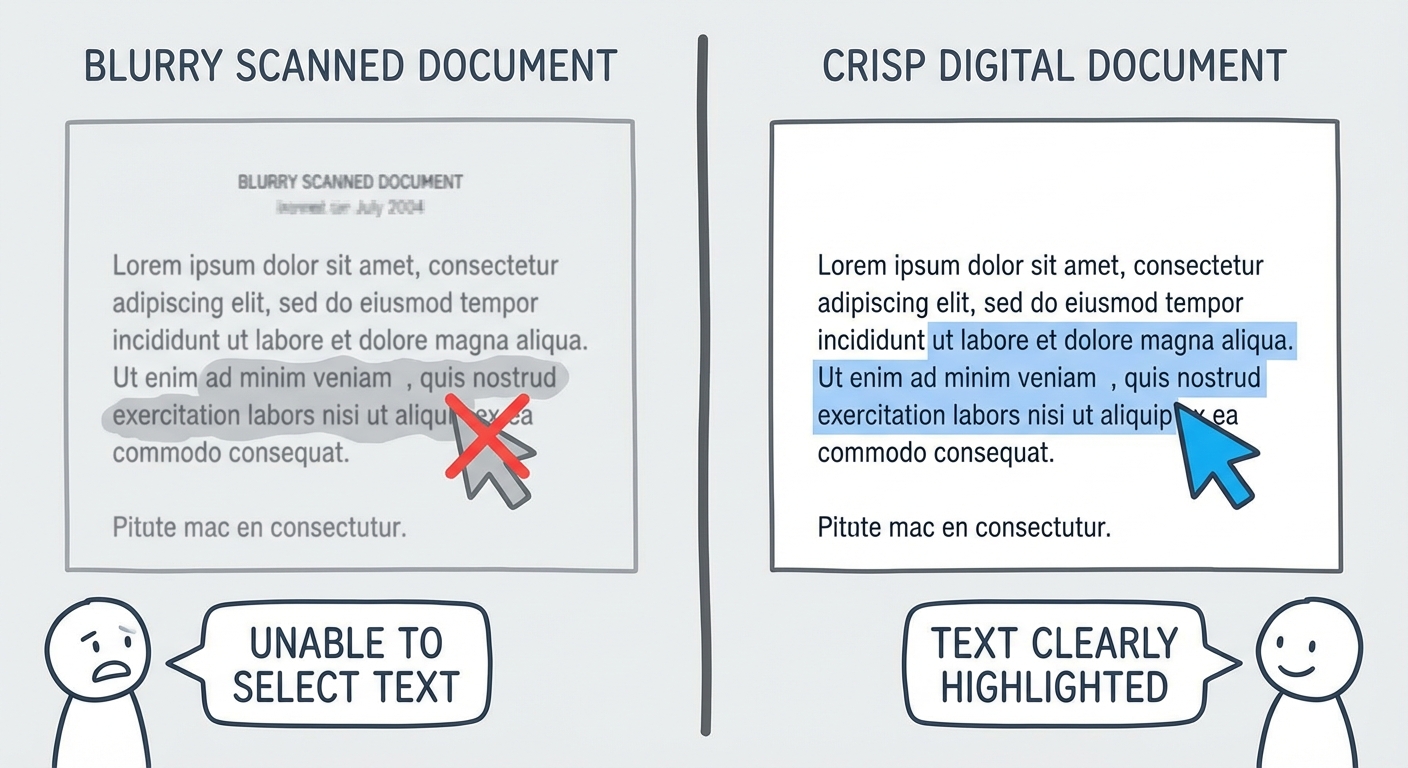
This is the big one. You are looking at a scan of a contract or an old book. You drag your cursor, and it just draws a box around the whole page.
Standard readers cannot read this. To them, it is just a collection of pixels. To extract text, you need OCR (Optical Character Recognition). This technology looks at the shapes in the image—the curves of an 'S', the cross of a 'T'—and translates them into digital text.
The 2026 Trend: Instant AI Recognition
In the past, OCR was slow and error-prone. You’d get "1" instead of "I" or "rn" instead of "m". Today, AI-driven OCR understands context. It knows that "c0rn" is probably "corn".
Solution 1: Specialized OCR Tools
If you are dealing with heavy documentation—legal briefs, medical records, or archives—you can't rely on basic tools. You need a dedicated engine that can process hundreds of pages and retain the layout.
For professional-grade digitization, you should look into tools with specific OCR capabilities. These tools don't just give you a txt file; they overlay the text onto the image, creating a "Searchable PDF" that looks like the original but behaves like a Word doc.
Solution 2: Quick Web Tools
For a one-off extraction—say, a single page from a magazine—you don't need to install software. Online OCR is a reliable, free resource. You upload the image or PDF, select the language, and it spits out the text in a box for you to copy. It’s not pretty, and it struggles with complex tables, but for grabbing a few paragraphs, it’s instant.
Extracting Text from "Secured" or Read-Only PDFs
You open the file. The text is crisp. You can select it. But the "Copy" button is grayed out, and Ctrl+C does nothing.
You have hit a permissions wall.
Ethical Disclaimer: This advice is for files you have legitimate access to—like an old employee handbook you lost the password for, or your own intellectual property. Do not use these methods to steal copyrighted content.
There are two types of passwords:
- Open Password: You can't even view the file without the code.
- Owner Password: You can view it, but you can't edit, print, or copy.
If you are stuck behind an Owner Password, the file is essentially in "Read-Only" mode. To get the data out, you need to remove the restriction layer. A dedicated Unlock PDF tool can strip these permission flags, provided you aren't trying to brute-force a high-level Open Password. Once unlocked, the "Copy" function in any standard reader will reactivate immediately.
The "Table Nightmare": Copying Formatted Data to Excel
This is the boss battle of copy-pasting.
You have a PDF bank statement or a price list. It looks like a perfect table. You highlight it, copy it, and paste it into Excel. Result: Disaster. All the data lands in Column A. The headers are misaligned. The numbers are mixed with the text.
Why Readers Fail: PDFs care about visual position, not logical structure. The PDF knows that the number "$500" is located at coordinates X:100, Y:200. It doesn't know that it belongs to the "Price" column. When you copy, the reader just grabs the text left-to-right, top-to-bottom, ignoring the grid.
The Solution: Stop trying to "copy" tables. You must convert them.
For financial data or extensive lists, the only way to retain the row/column structure is to use a PDF to Word converter (or PDF to Excel). These tools use algorithms to detect the grid lines and visual alignment, reconstructing the table in a spreadsheet format. It saves you hours of manual reformatting.
Mobile Copy-Paste: Tips for iPhone and Android
63% of PDF views now happen on mobile devices. If you’ve ever tried to precisely select a specific sentence on a smartphone using your thumb, you know it’s an exercise in rage.
But the game has changed. You don't need to select text anymore. You just need your camera.
iOS "Live Text"
If you are on an iPhone, stop trying to open the PDF in a reader.
- Take a screenshot of the PDF page.
- Open the screenshot in your Photos app.
- Hold your finger down on the text in the image.
Apple’s "Live Text" feature uses on-device AI to recognize text inside any image. You can copy it instantly. This bypasses PDF security permissions and bad formatting entirely because it’s reading the pixels, not the code.
Android / Google Lens
Android users have the same power via Google Lens. If you are viewing a PDF and can't select the text:
- Activate Google Assistant or open Google Lens.
- Select "Search Screen".
- Tap the "Text" filter.
It will highlight every word on the screen, allowing you to copy specific blocks to your clipboard or send them directly to your computer.
Troubleshooting: Why Does Copied Text Look Like Garbage?
You successfully copied the text. You paste it. And you get this:
T#e q$ick br0wn fox.
Or just empty squares: □□□□□.
The Technical Reason: This is a Font Encoding issue. The PDF contains the vector drawing of the letter, so your eyes see "The quick brown fox." But the underlying "ToUnicode" map—the dictionary that tells the computer which key on the keyboard that drawing corresponds to—is missing or corrupt. It's like having a map where "North" is labeled "Potato."
The Fixes:
- Switch Readers: Chrome, Edge, and Acrobat all use different rendering engines. If one fails, try another. Chrome is notoriously good at guessing broken encoding.
- The "Print" Hack Again: As mentioned earlier, "Printing to PDF" creates a new file and forces the system to generate a new encoding map. This fixes garbage text 90% of the time.
- The Nuclear Option (OCR): If the text is hopelessly corrupt, treat the PDF like an image. Use an OCR tool to re-scan the visual shapes and generate fresh, clean text from scratch.
Conclusion
"Copy and paste" seems like a basic right of the digital age, but in the world of PDFs, it’s a privilege you sometimes have to fight for.
The ability to extract text isn't just about the reader you choose; it’s about understanding the file you are holding.
- For standard text: Use your browser or Adobe Acrobat.
- For scanned images: You must use a tool with OCR capabilities.
- For tables: Don't copy. Convert.
- For locked files: Use an unlocker.
Don't let a file format slow you down. The data is there; you just need the right key to open it.
FAQ
Q1: Why does the text turn into weird symbols when I copy from a PDF? This is usually a font encoding issue. The PDF reader recognizes the visual shape of the letters but lacks the underlying data map to translate them into text characters. Converting the PDF to an image and running OCR often fixes this by generating a new text layer.
Q2: How can I copy text from a PDF that says "Secured"? A "Secured" status usually means the author has placed an "Owner Password" on the file to restrict editing or copying. You can use a PDF Unlock tool to remove these restrictions if you have legal access to the content.
Q3: Is there a way to copy a table from PDF to Excel without ruining the formatting? Standard copy-pasting rarely works for tables because PDFs ignore logical row/column structures. The best method is to use a PDF-to-Excel converter, which identifies the grid structure and exports the data into clean cells.
Q4: Why can't I select any text in my PDF? You are likely looking at a "scanned" PDF, which is essentially a photograph of a document. To select the text, you must use a PDF reader with OCR (Optical Character Recognition) capabilities to convert the image into selectable words.
Q5: Does Google Chrome's PDF viewer support OCR? The native Chrome viewer does not support OCR for scanned documents. However, you can drag the PDF into Google Drive and select "Open with Google Docs" to automatically convert the image text into an editable format.