How to Cut and Paste Selected Areas in a PDF


TL;DR
- Diagnose if a PDF is a text layer or a static image.
- Use the Select Tool for clean text extraction in native PDFs.
- Apply OCR to make scanned documents selectable and editable.
- Distinguish between copying content and cutting/deleting data from files.
- Solve common selection issues caused by security or tool settings.
You know the drill. You need a specific paragraph, a financial table, or a logo from a PDF report. You drag your cursor, hit Ctrl + C, and paste it into Word.
The result? A formatting disaster. It looks more like a ransom note than a professional document. Or worse, the PDF refuses to let you highlight anything at all, treating the text like a locked picture.
Here is the reality check: "Cutting and pasting" in the PDF world isn't as binary as it is in a Word doc. There is a massive distinction between copying (extracting content to use elsewhere) and cutting (deleting content from the file).
Whether you are wrestling with a scanned invoice, trying to pull a clean table into Excel, or redacting a social security number, the method changes based on the data type. Modern tools, including browser-based OCR and AI assistants, have made this significantly less painful than it was even two years ago.
Here is how to handle every scenario without losing your mind.
Diagnosis: Why Can’t I Select the Area I Want?
Before you start clicking wildly, diagnose the file. If you click on a word and nothing happens, or the entire page turns blue, you aren't dealing with a text layer. You are looking at a picture of text.
There are usually three culprits when selection fails:
- The "Image-Only" Problem: The PDF is a scan. To the computer, it’s just a giant JPEG. You can’t select the text because there is no text—only pixels.
- Security Restrictions: The owner applied an "Owner Password" that specifically disables content copying. You can read it, but you can't touch it.
- Wrong Tool: You are using the "Hand" tool (for scrolling) instead of the "Select" tool.
Use this logic flow to figure out which tool you need right now:
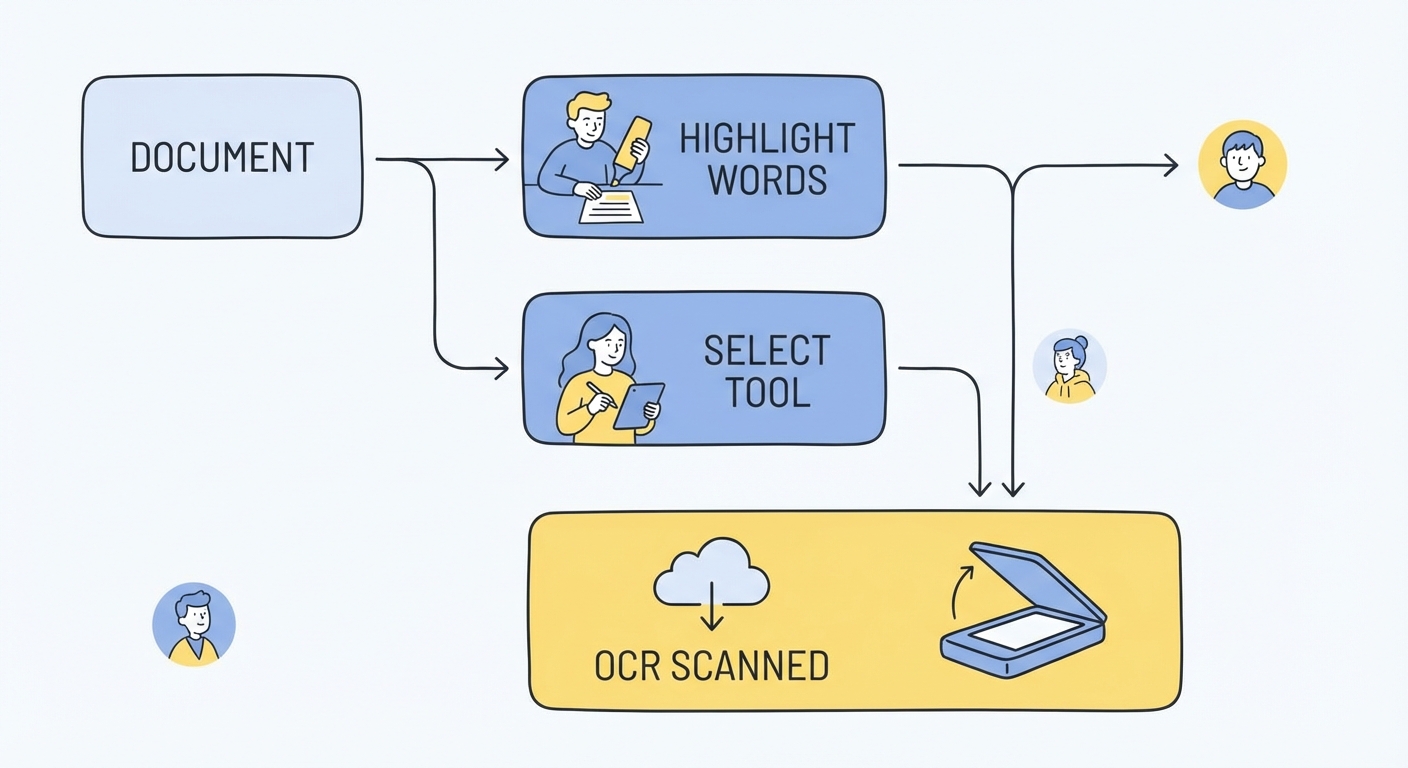
If your PDF acts like a static image where individual words cannot be highlighted, you likely need to apply OCR (Optical Character Recognition) first. This converts the image pixels into selectable characters. You can learn more about how to OCR a PDF to make those static pages editable.
Method 1: The Standard "Select" Tool (Best for Text)
This is the bread and butter for native PDFs (documents created digitally, not scanned). The trick here isn't just selecting; it's selecting cleanly.
The Cursor Change
Watch your mouse cursor. If it looks like a small open hand, you are in "Pan" mode. You need the I-beam (the tall capital 'I').
Step-by-Step Execution
- Open the PDF in your reader of choice (Adobe Acrobat Reader DC, Foxit, or even Chrome/Edge).
- Right-click anywhere on the document and choose "Select Tool" (in Adobe, you can also find the arrow icon in the top toolbar).
- Drag across the text you want.
- Copy: Use
Ctrl + C(Windows) orCmd + C(Mac).- Pro Tip: Always use the keyboard shortcut. Right-clicking a selection often accidentally deselects the text or opens a context menu that blocks what you are trying to do.
The "Column Mode" Trick (The Game Changer)
This is the most underused feature in PDF history. Have you ever tried to copy a column of text (like a list of names) but the cursor selects the dates in the next column too?
The Fix: Hold down the Alt key (Windows) or Option key (Mac) before you start dragging.
This forces Rectangular Selection Mode. You can now draw a vertical box around just the column you want, ignoring the text to the right or left. This alone saves hours of reformatting.
Method 2: The "Snapshot" Tool (Best for Images & Layouts)
If you are trying to extract a chart, a logo, or a complex header, do not try to highlight it. You will end up pasting a jumbled mess of broken image fragments. You need the Snapshot tool.
Think of this as a high-precision "Snipping Tool" built directly into the PDF reader. It copies the selected area to your clipboard as a high-resolution image, preserving the exact visual layout.
How to use it in Adobe Acrobat / Foxit:
- Go to the Edit menu and select Take a Snapshot (or look for the camera icon).
- Your cursor will turn into crosshairs (+).
- Drag a box around the exact area you want—a graph, a signature block, or a specific paragraph with special formatting.
- Release the mouse. You will typically hear a camera shutter sound or see a confirmation: "The selected area has been copied."
- Paste (
Ctrl + V) directly into your PowerPoint, email, or Word doc.
The Context: Remember, this pastes as an Image. You cannot edit the text inside it once pasted. It is a picture. This is perfect for "quoting" a visual section of a document where accuracy is more important than editability.
Method 3: How to Cut and Paste Tables to Excel (Without Breaking Them)
The single biggest headache in data entry is copying a table from a PDF. You highlight the rows, paste into Excel, and... everything lands in Cell A1. Or worse, the columns shift, and the data becomes unusable.
Manual copy-pasting rarely works for tables because PDF structure doesn't understand "cells" the way Excel does.
Option A: The "Get Data" Import (Best for Excel Users)
Stop pasting. Import instead.
- Open Excel.
- Go to the Data tab.
- Select Get Data > From File > From PDF.
- Select your file. Excel’s algorithm will detect the tables and give you a preview. You can then "Load" the clean data directly into the spreadsheet.
Option B: Convert the Page
If the table is complex or spans multiple pages, the "cut and paste" method is a waste of time. The fastest route is to convert the file using a dedicated PDF to Word tool. Good converters preserve the table structure (grid lines and columns), allowing you to copy the table from Word into Excel cleanly.
Method 4: How to "Cut" (Remove) Text Permanently
Let's clear up the terminology. If you want to remove text from the PDF—as in, delete a paragraph so nobody sees it—you are no longer "reading." You are "editing."
Reader vs. Editor
You cannot delete text in Adobe Reader, Chrome, or Preview. Those are viewers. To cut text, you need a PDF Editor (like Adobe Acrobat Pro, PDFelement, or online editors).
The "Cut" Function
- Open the file in a PDF Editor.
- Select the "Edit PDF" tool. Bounding boxes will appear around text and images.
- Click the text box you want to remove.
- Press Delete. The text is gone.
Critical Warning: Redaction vs. Deletion
If you are removing text for security (e.g., hiding a credit card number), hitting "Delete" isn't enough. Metadata or previous versions might still hold that info. And definitely do not just draw a black rectangle over the text—that is not redaction; that is just putting a sticker over the text. Anyone can move the sticker and read what's underneath.
If your goal is to permanently remove sensitive info, you need software with specific redaction capabilities. Check out our list of the best free PDF editors that handle true redaction securely.
Method 5: Mobile & Cloud Tricks (2026 Workflows)
We don't always have a laptop open. Sometimes you need to grab a quote from a contract on your phone and slack it to a colleague. In 2026, mobile OS features have made this incredibly fast.
iOS Live Text / Android Lens
You don't even need a PDF app for this.
- Open the PDF on your phone.
- Take a screenshot.
- Open the screenshot in your Photos app.
- Long-press the text in the image. Your phone's built-in AI will recognize the words.
- Tap Copy.
Google Keep Integration
For a quick fix without installing apps, Google Keep allows you to extract text from any image upload instantly.
- Upload a screenshot of your PDF section to a new Keep note.
- Click the three dots menu.
- Select "Grab Image Text."
- Google will dump all the editable text into the body of the note. It is fast, free, and incredibly accurate.
Troubleshooting: Pasting Without Formatting Errors
You successfully copied the text. But when you paste it, the font is size 24, the line breaks are wrong, and there are weird symbols.
The "Gibberish" Issue
If you paste text and it looks like öäü, you have an encoding issue. The PDF fonts aren't mapping correctly to your system fonts. The quick fix is usually to run the page through an OCR tool, which rebuilds the text layer from scratch. Standardized formats like PDF/UA, promoted by the PDF Association, help prevent these errors by enforcing better structural tagging in documents.
The "Paste Special" Solution
Never just Ctrl + V. That brings all the PDF's baggage (fonts, spacing, colors) into your clean document.
Instead, use Ctrl + Shift + V (Windows) or Cmd + Shift + V (Mac). This is the universal shortcut for "Paste as Plain Text." It strips away all the PDF formatting and forces the text to match the font and style of your current document.
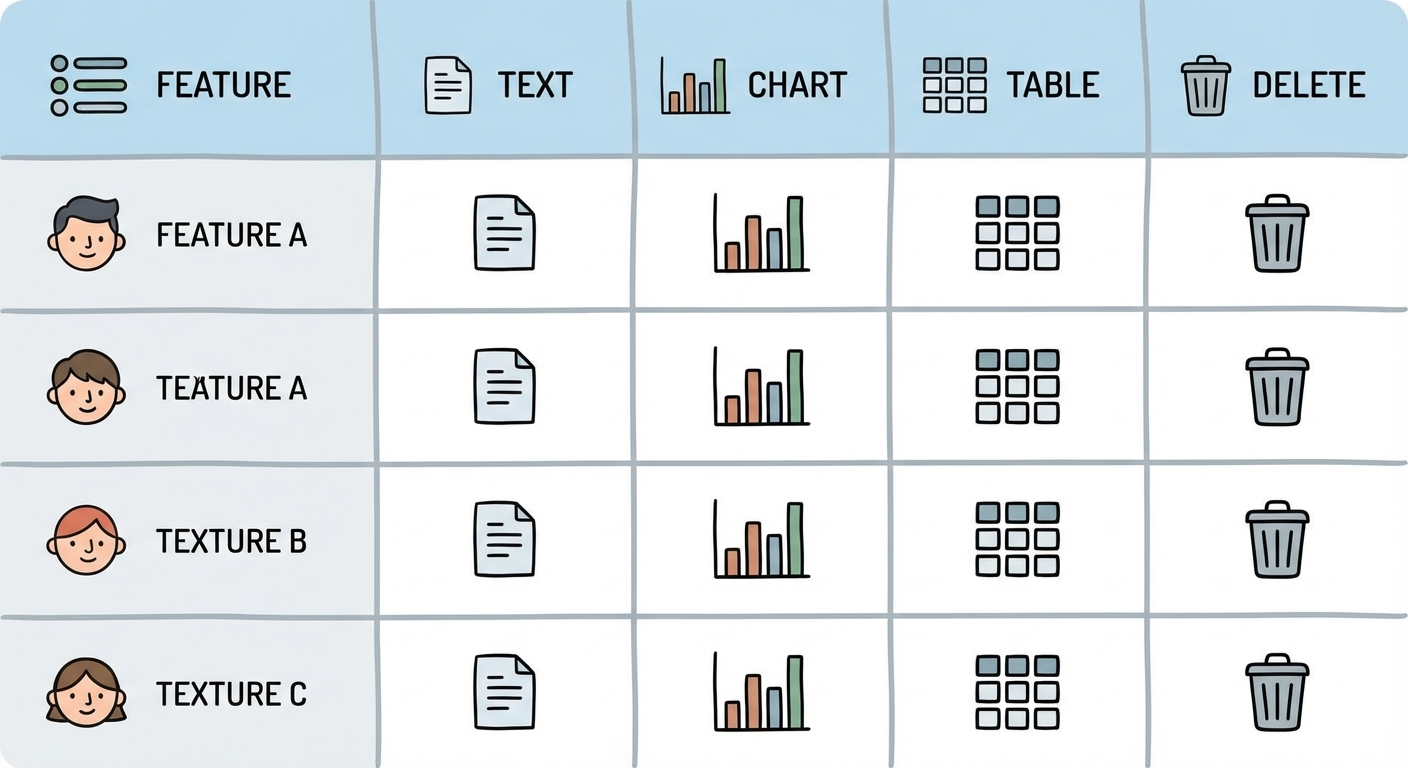
Quick Summary Table: Which Tool for Which Job?
If you are skimming, here is your cheat sheet. Don't use a hammer to turn a screw; use the right tool for the data you want.
Frequency Asked Questions (FAQ)
Q1: Why does my text look like strange symbols when I paste it? This is usually a font encoding issue. The PDF creator used a custom font that doesn't map to your system's characters. Try using the "Snapshot" tool to paste it as an image, or run the PDF through an OCR tool to re-recognize the text characters.
Q2: Is there a "Snipping Tool" inside PDF readers? Yes, it is almost always called the "Snapshot Tool" and looks like a camera icon. While you can use the Windows Snipping Tool, the internal Snapshot tool is better because it captures the resolution of the document, not just your screen resolution.
Q3: How do I cut text from a PDF without Adobe Acrobat Pro? For basic extraction, free browsers like Edge or Chrome work perfectly. If you need premium features like high-fidelity export without installing software, Adobe Acrobat Online Tools offer a robust free tier for converting and editing.
Q4: Can I cut and paste from a password-protected PDF? Only if you have the password. PDF owners can set specific permissions that disable "Content Copying." If this is unchecked in the security settings, the copy options will be greyed out.
Q5: How do I select a vertical column of text only?
Hold down the Alt key (Windows) or Option key (Mac) while dragging your mouse. This switches from standard line-by-line selection to a rectangular box selection.