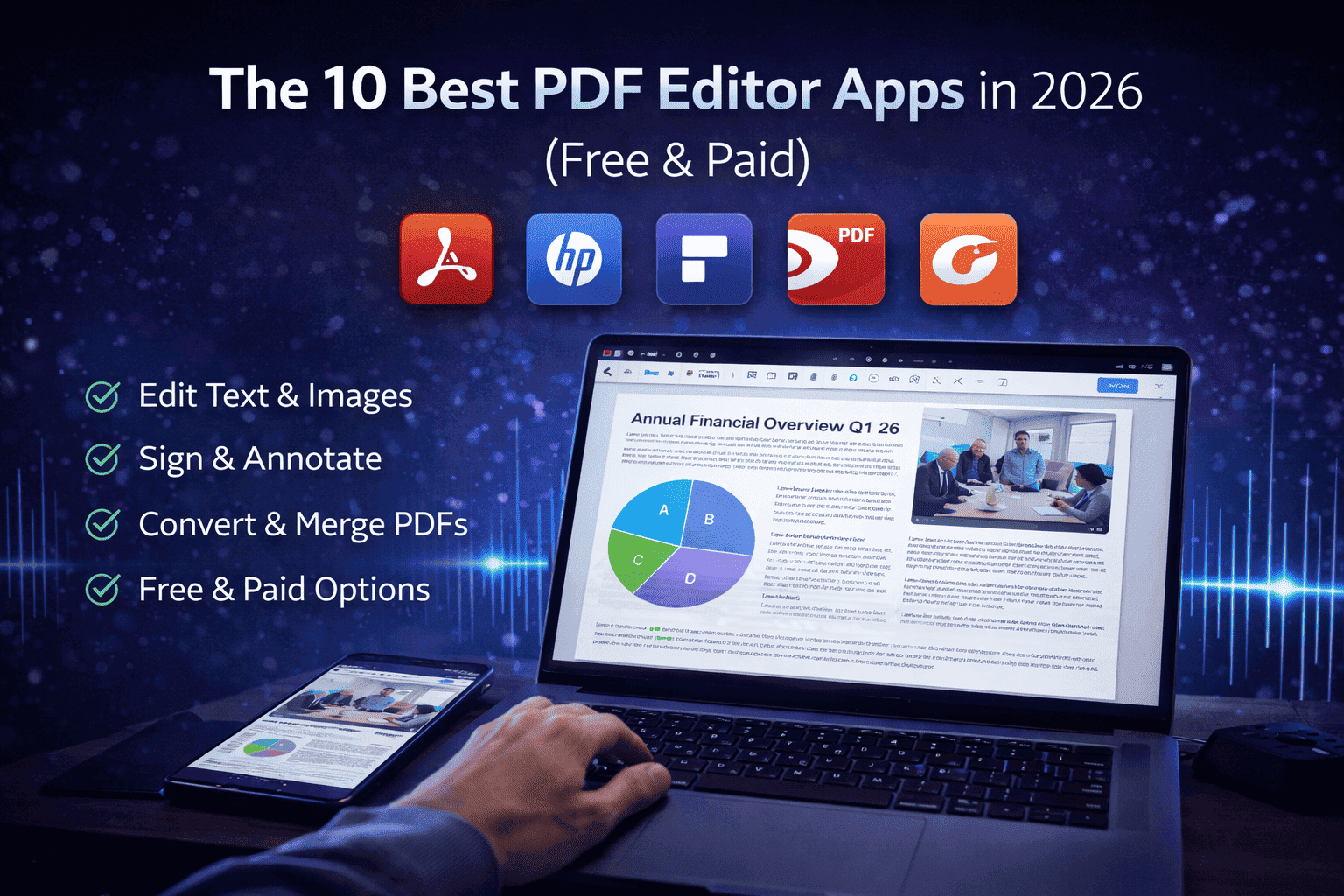
The 10 Best PDF Editor Apps in 2026 (Free & Paid)

Key Takeaways
AI-powered PDF editors save time with summarization, OCR, and document analysis
Free PDF editors like PDFgear and Sejda work well for basic tasks
Online PDF editors offer flexibility without software installation
Enterprise users benefit from advanced security and compliance features
Choosing the best PDF editor depends on workflow, device, and budget
Introduction
PDF editing in 2026 is no longer limited to adding text or highlighting pages. Modern PDF editor apps now offer AI-powered features like document summarization, OCR, translation, cloud collaboration, and secure redaction. From students and freelancers to legal teams and enterprises, everyone needs a PDF editor that fits their workflow, budget, and device preferences.
This blog compares the 10 best PDF editor apps in 2026, covering both free and paid options. We break down tools like PDF7.app, Adobe Acrobat Pro, UPDF, PDFgear, Smallpdf, Foxit, and others, focusing on usability, AI features, pricing, and best use cases. Whether you want a free PDF editor, an AI-powered PDF tool, or enterprise-grade security, this guide helps you choose the right solution.
The way we interact with digital documents has undergone a radical transformation. In 2026, the humble PDF is no longer a static, "read-only" format designed for printing. It has evolved into a dynamic workspace where artificial intelligence, cloud collaboration, and seamless cross-platform integration are the standard. We are moving away from the era of heavy, monolithic software installations toward agile, AI-powered assistants that can summarize 500-page reports in seconds or translate legal contracts with a single click.
Choosing the right PDF editor in this landscape is about more than just finding a tool that can "add a text box." It is about finding a solution that fits your specific workflow—whether you are a student organizing research with AI-generated Content, a legal professional requiring ironclad redaction and security, or a creative professional working across an iPad and a Mac.
Quick Look
PDF7.app: Best for all-in-one online productivity and AI-powered document interrogation.
Adobe Acrobat Pro: The gold standard for enterprise-grade security and advanced legal tools.
UPDF: Top choice for students needing AI mind mapping and multi-platform accessibility.
PDFgear: The premier 100% free desktop editor with a built-in AI Copilot.
Smallpdf: Best-in-class browser integration for Google Workspace users.
Foxit PDF Editor: A robust, high-performance alternative to Adobe for power users.
PDF Expert: The most polished and intuitive experience for the Apple ecosystem.
EaseUS PDF Editor: A simple, user-friendly Windows solution for straightforward tasks.
Sejda: Perfect for quick, one-off web edits without the need for an account.
PDFelement: Leader in AI-integrated translation and professional proofreading.
2026 PDF Editor Comparison Table
Tool Name | Best For | Free Plan/Trial | Starting Price |
|---|---|---|---|
PDF7.app | Online AI Productivity | Yes (5 uploads/day) | $10/mo (Annual) |
Adobe Acrobat Pro | Corporate Standards | 7-Day Free Trial | $12.99/mo |
UPDF | AI Mind Mapping | Free (with Watermark) | $35.99/year |
PDFgear | Free Desktop Editing | 100% Free | $0 |
Smallpdf | Browser Extensions | Limited Daily Tasks | $10/mo |
Foxit PDF Editor | Business Performance | 14-Day Free Trial | $129.99/year |
PDF Expert | Mac & iOS Users | Basic Version Free | $6.67/mo |
EaseUS PDF Editor | Simple Windows Edits | Limited Free Trial | $19.47/mo |
Sejda | Quick Web Edits | 3 Tasks per Day | $5/mo |
PDFelement | AI Translation | 14-Day Free Trial | $11.99/quarter |
1. PDF7.app
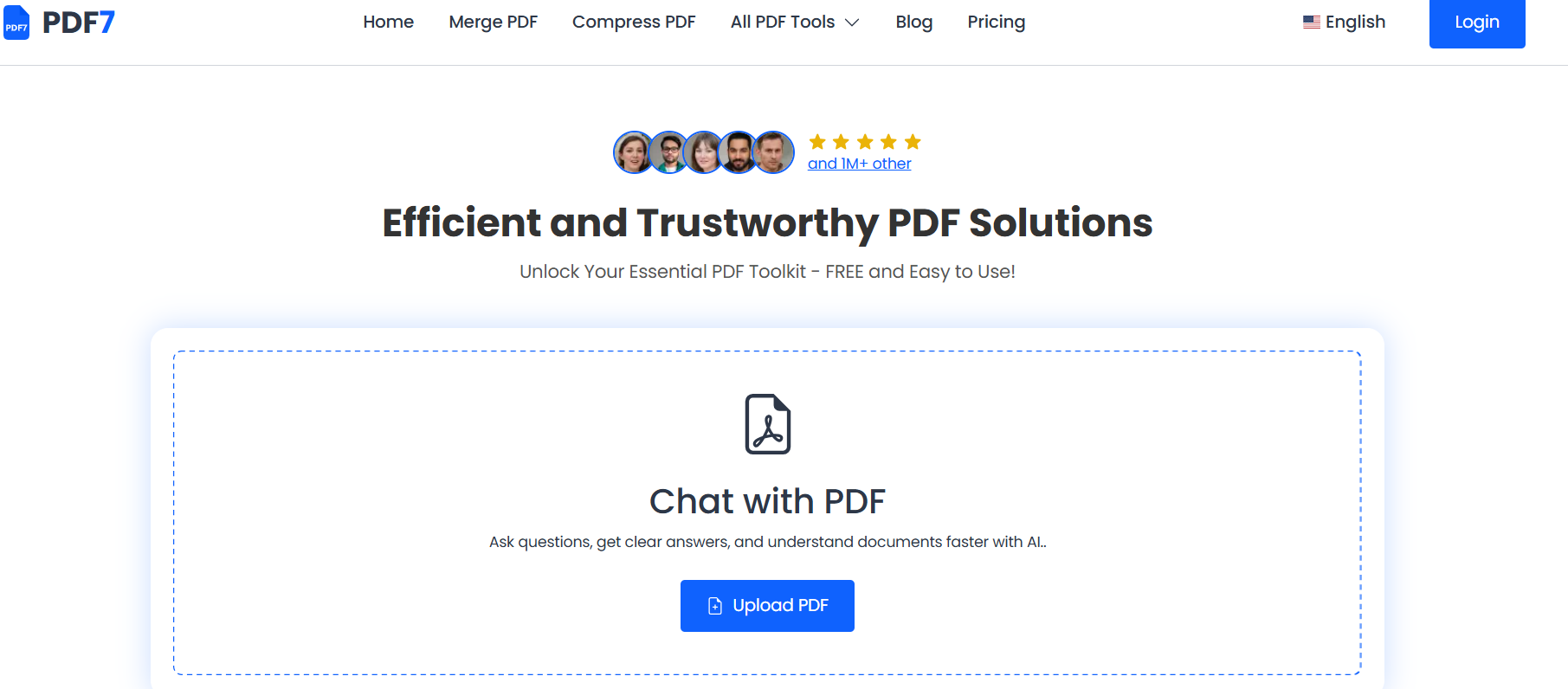
Best for: Individuals and professionals who need a fast, secure, and AI-enhanced online toolkit without installing software.
PDF7.app stands at the forefront of the 2026 PDF revolution by offering a comprehensive suite of over 40 tools directly within your web browser. In an era where "cloud-first" is the mantra, this platform eliminates the friction of heavy downloads and system compatibility issues. It is designed for the modern user who values efficiency and doesn't want to navigate complex sub-menus to perform basic tasks like merging, compressing, or repairing a corrupted file.
The standout feature of PDF7.app is its "Chat with PDF" functionality. Powered by advanced linguistic models, it allows users to interrogate their documents. You can upload a complex legal brief and ask, "What are the termination clauses in this contract?" or provide a research paper and request a bulleted summary of the findings. Beyond AI, it handles traditional tasks—like converting PDFs to Word, Excel, and PowerPoint—with high fidelity.
Pros:
No installation required; works seamlessly across all operating systems.
Advanced "Chat with PDF" AI feature for instant summarization.
Privacy-centric design; files are not permanently stored on servers.
Includes niche tools like PDF Repair and specialized Office conversions.
Cons:
Requires a stable internet connection for use.
Free tier has daily limits on uploads and AI questions.
Pricing Summary
Free Plan: $0 (5 uploads/day, 100 AI questions/mo).
Paid Plan: Pro starts at $10/mo (billed annually) for 100 uploads; Premium is $20/mo (billed annually) for unlimited access.
2. Adobe Acrobat Pro
Best for: Large enterprises and legal professionals requiring industry-standard security and advanced redaction.
Adobe Acrobat Pro remains the definitive choice for the corporate world. Its deep integration with enterprise systems and compliance with global legal standards remain unmatched. In 2026, Adobe has significantly improved its cloud collaboration features, allowing multiple stakeholders to comment and edit a single PDF in real-time.
Pros:
Most comprehensive set of editing and security tools available.
Industry-leading OCR and document comparison features.
Legal-grade e-signature capabilities.
Cons:
High subscription cost compared to competitors.
Can be resource-intensive on older hardware.
Pricing Summary
Free Plan: 7-day free trial available.
Paid Plan: Standard starts at $12.99/mo; Pro is $19.99/mo (annual billing).
3. UPDF
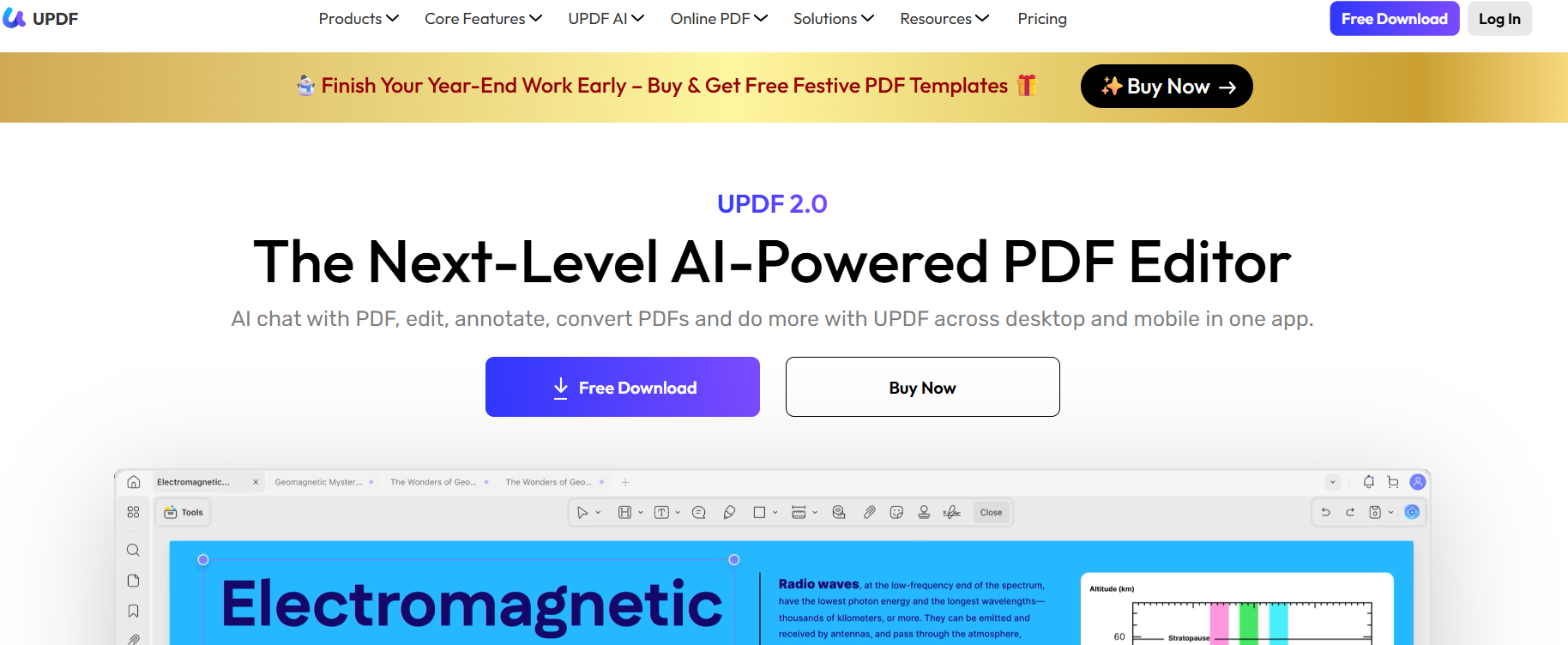
Best for: Students and researchers who need AI-generated mind maps and deep document analysis.
UPDF has carved out a unique niche by focusing on the "learning" aspect of PDF management. Its AI-powered mind mapping tool can take a long document and automatically generate a visual map of key concepts. A single license grants the user full access across Windows, Mac, Android, and iOS.
Pros:
Innovative AI mind mapping aids document comprehension.
Single license covers all desktop and mobile devices.
Modern, highly responsive user interface.
Cons:
Free version applies watermarks.
Full AI capabilities require an additional specialized plan.
Pricing Summary
Free Plan: Limited version with watermarks.
Paid Plan: Pro starts at $35.99/year; Perpetual license available for $55.99.
4. PDFgear
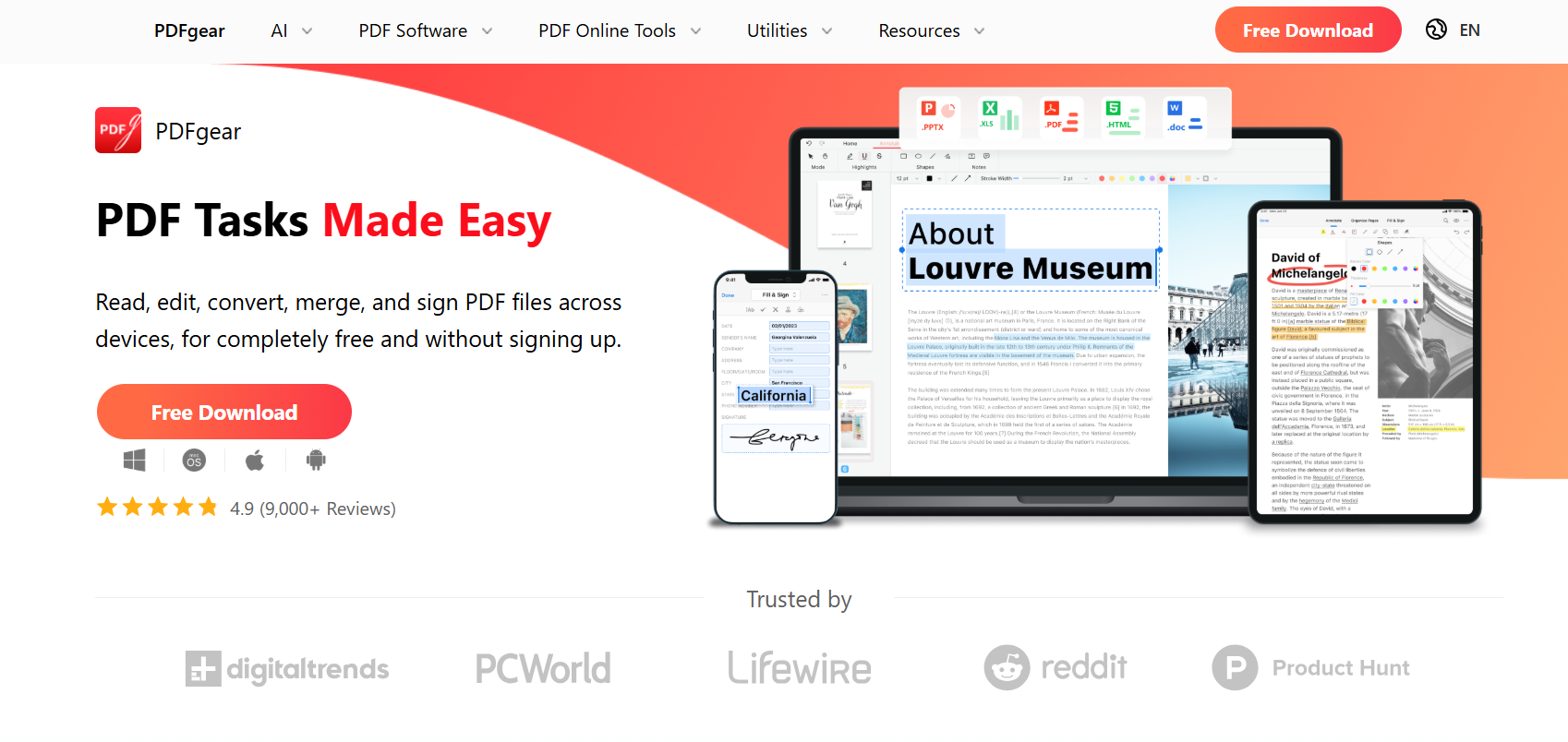
Best for: Budget-conscious users and individuals who need a full desktop editor without a subscription.
PDFgear is a 100% free desktop application that rivals many paid solutions. It offers a full suite of editing tools and a sophisticated AI Copilot that allows users to execute commands through a chat interface, such as "Convert this to Word and remove the last page."
Pros:
Completely free with no watermarks or hidden fees.
Powerful AI Copilot for natural language commands.
No account registration required.
Cons:
Lacks advanced form-building tools.
Fewer security permissions than enterprise-grade software.
Pricing Summary
Free Plan: 100% Free.
Paid Plan: N/A (Currently all features are free).
5. Smallpdf
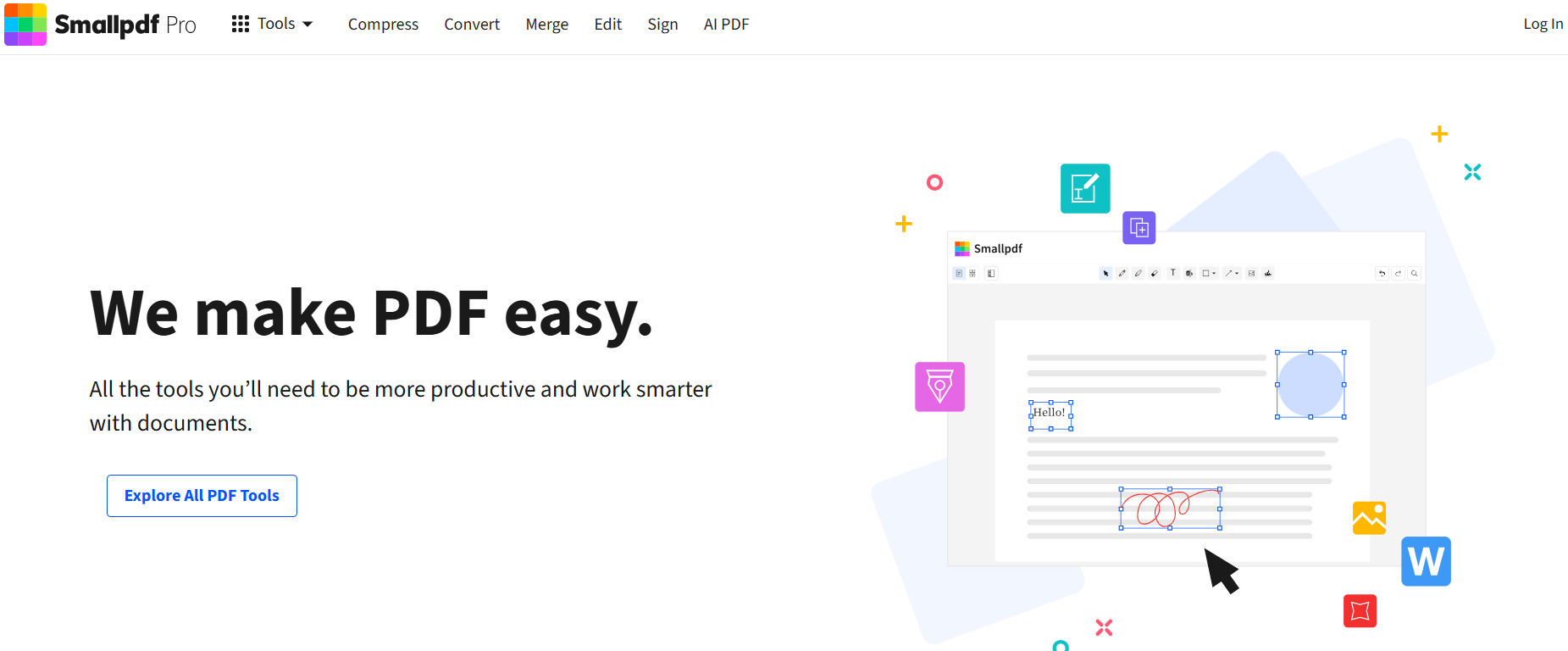
Best for: Users who live in Google Workspace or Dropbox and need a quick Chrome extension.
Smallpdf remains a leader in the browser-first space. Its primary strength is seamless integration with Google Drive and Dropbox. In 2026, its compression algorithm remains the best in the business, capable of shrinking large files without degrading image quality
Pros:
Excellent browser extension for Google Chrome.
High-quality compression preserves document clarity.
Minimalist, user-friendly interface.
Cons:
Strict daily limits on the free version.
Limited deep text-editing capabilities.
Pricing Summary
Free Plan: Limited daily tasks.
Paid Plan: Pro starts at $10/mo (billed annually).
6. Foxit PDF Editor
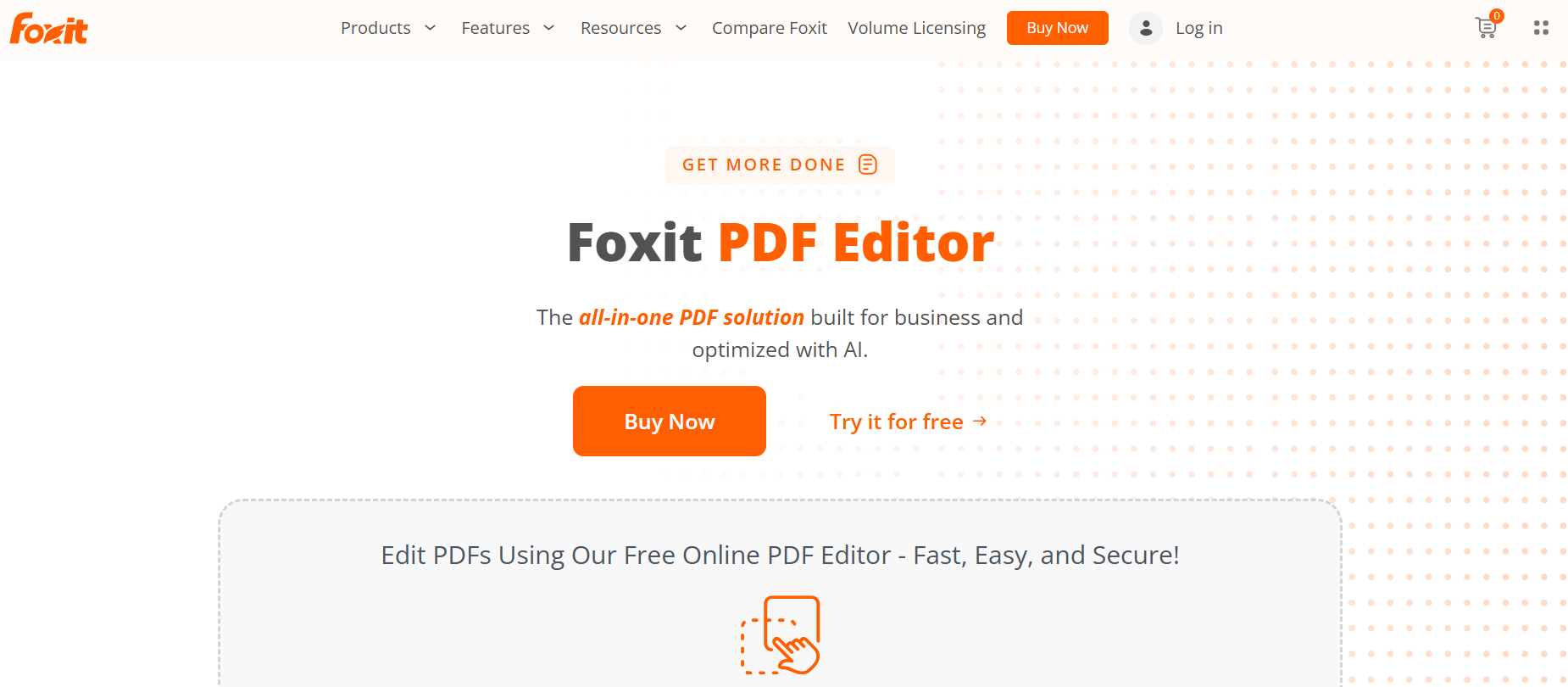
Best for: Businesses looking for Pro features at a lower cost than Adobe.
Foxit PDF Editor is a high-performance alternative to Adobe. It features a Microsoft Office-style ribbon interface and "Smart Redact" capabilities that use AI to automatically identify and mask sensitive information.
Pros:
Faster processing and loading times than Acrobat.
Advanced AI-powered redaction for legal/HR teams.
Perpetual license options available.
Cons:
Interface can feel cluttered with many tools.
AI features often require an additional add-on cost.
Pricing Summary
Free Plan: 14-day free trial.
Paid Plan: Starts at $129.99/year.
7. PDF Expert
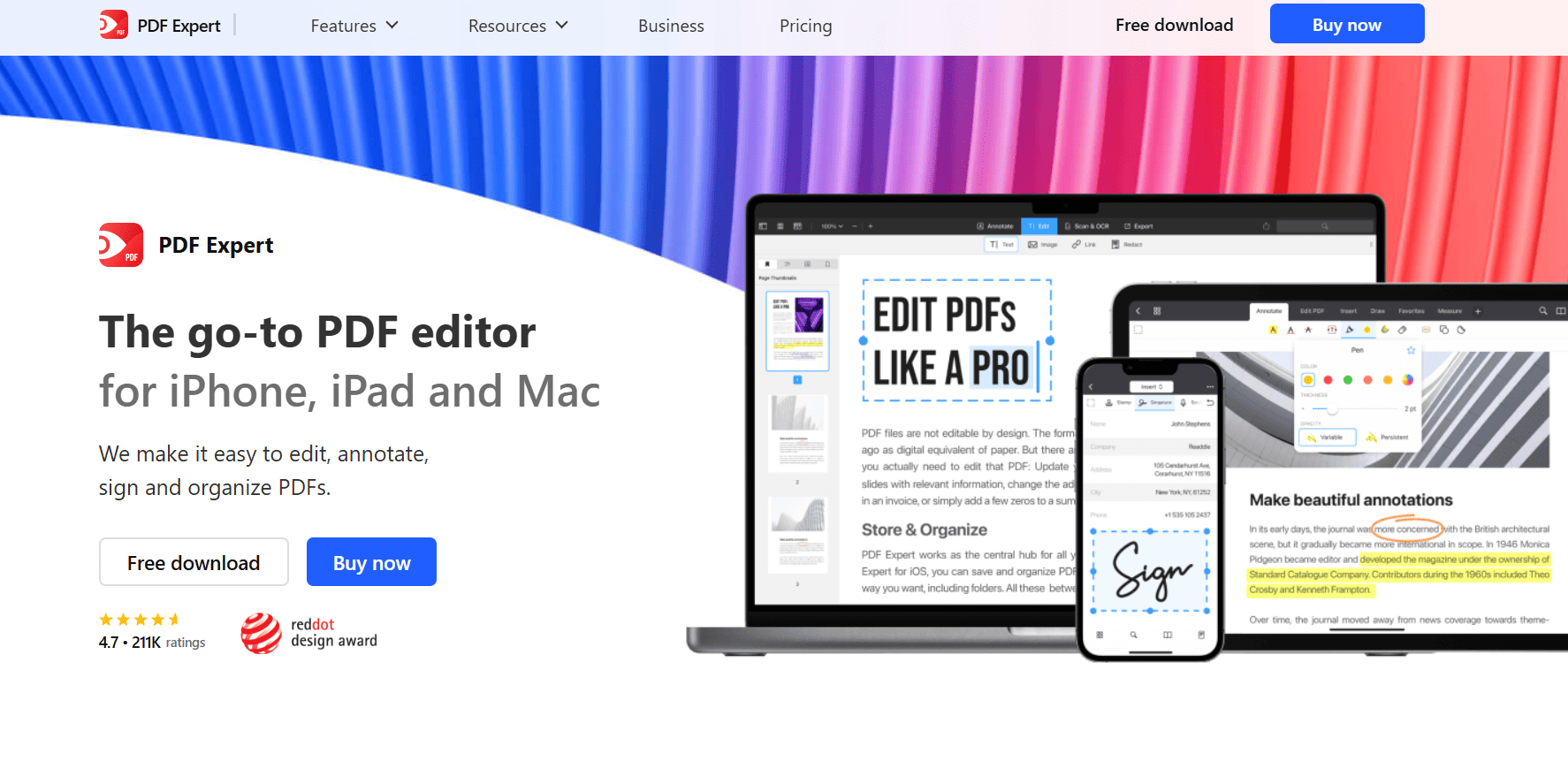
Best for: Apple ecosystem loyalists who need a fast, beautiful PDF experience.
PDF Expert is the gold standard for design on Apple hardware. It is incredibly lightweight and offers the most natural "ink" experience for the Apple Pencil on iPad. Its AI Scan Enhancement automatically removes shadows and straightens edges on mobile scans.
Pros:
Native design and performance for Mac and iOS.
Smooth scrolling even on 1,000+ page documents.
Seamless iCloud syncing.
Cons:
Not available for Windows or Android.
Lifetime license excludes some premium AI features.
Pricing Summary
Free Plan: Basic annotation tools are free.
Paid Plan: Premium is $79.99/year ($6.67/mo); Lifetime license is $139.99.
8. EaseUS PDF Editor
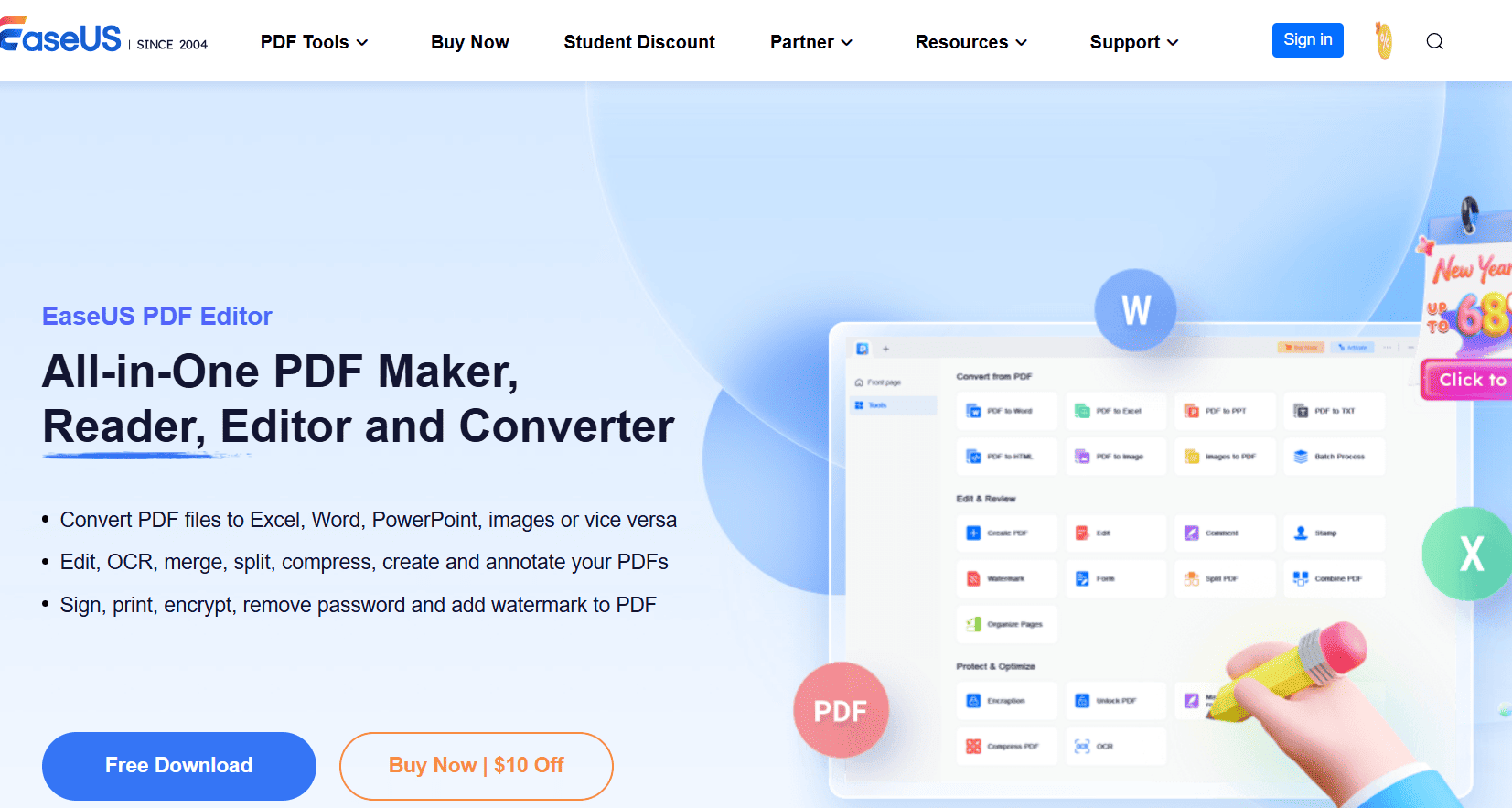
Best for: Individual Windows users who need a straightforward, affordable editor.
EaseUS PDF Editor focuses on the essentials: editing, converting, and OCR. It is designed for users who want to get a task done quickly without navigating complex enterprise menus.
Pros:
Very low learning curve; ideal for beginners.
Affordable lifetime license options.
Fast OCR for digitizing paper documents.
Cons:
No dedicated mobile application.
Interface feels dated compared to modern AI tools.
Pricing Summary
Free Plan: Limited trial with restricted saving.
Paid Plan: $19.47/mo or $79.95 for a lifetime license.
9. Sejda
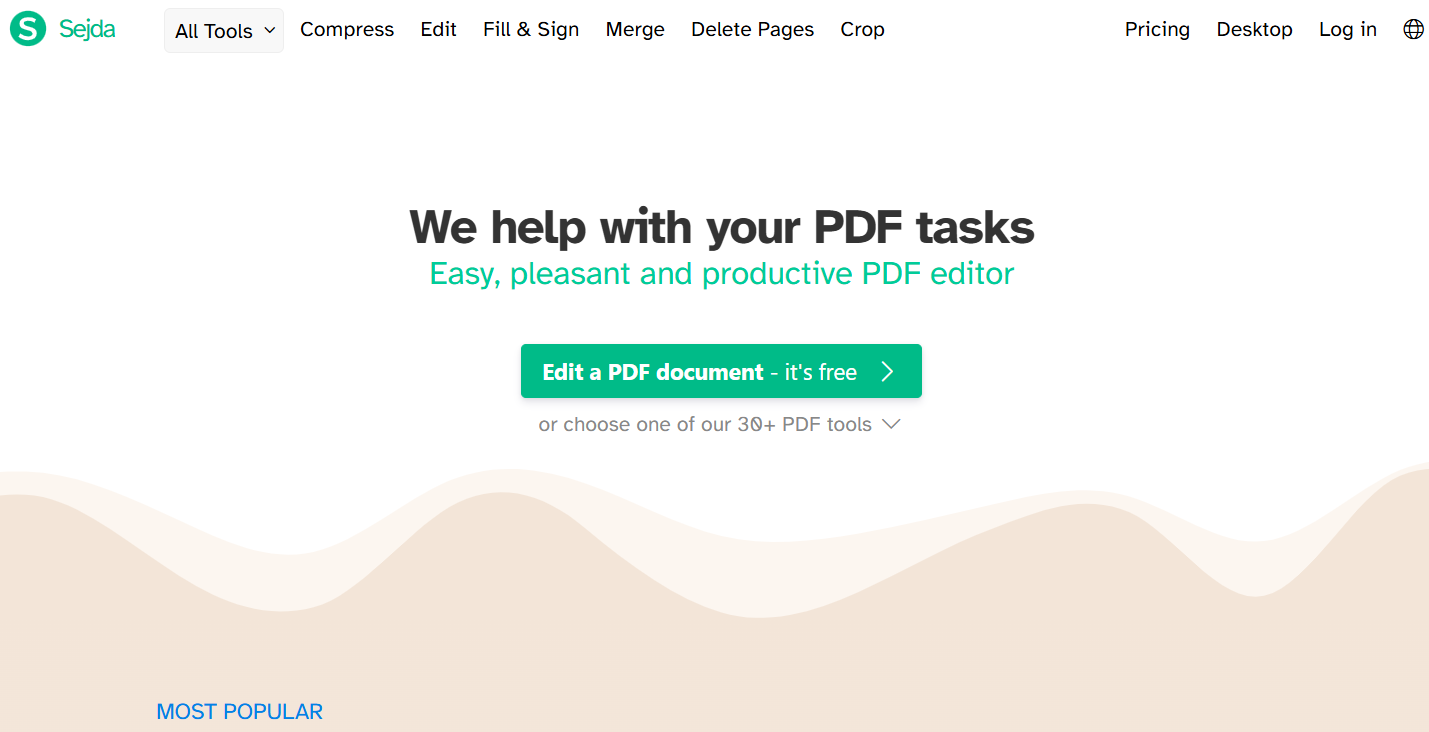
Best for: Casual users who need to edit 1-2 documents per week for free.
Sejda is the "utility knife" of PDFs. It allows users to perform specific tasks like whiting out text or signing a form in seconds without creating an account.
Pros:
No account registration required for web edits.
Unique "Whiteout" tool for non-editable PDFs.
Flexible pricing including weekly passes.
Cons:
Cannot save progress mid-edit.
Free tier has a 200-page limit.
Pricing Summary
Free Plan: 3 tasks per day.
Paid Plan: $5 for a 7-day pass; $7.50/mo for full web access.
10. PDFelement
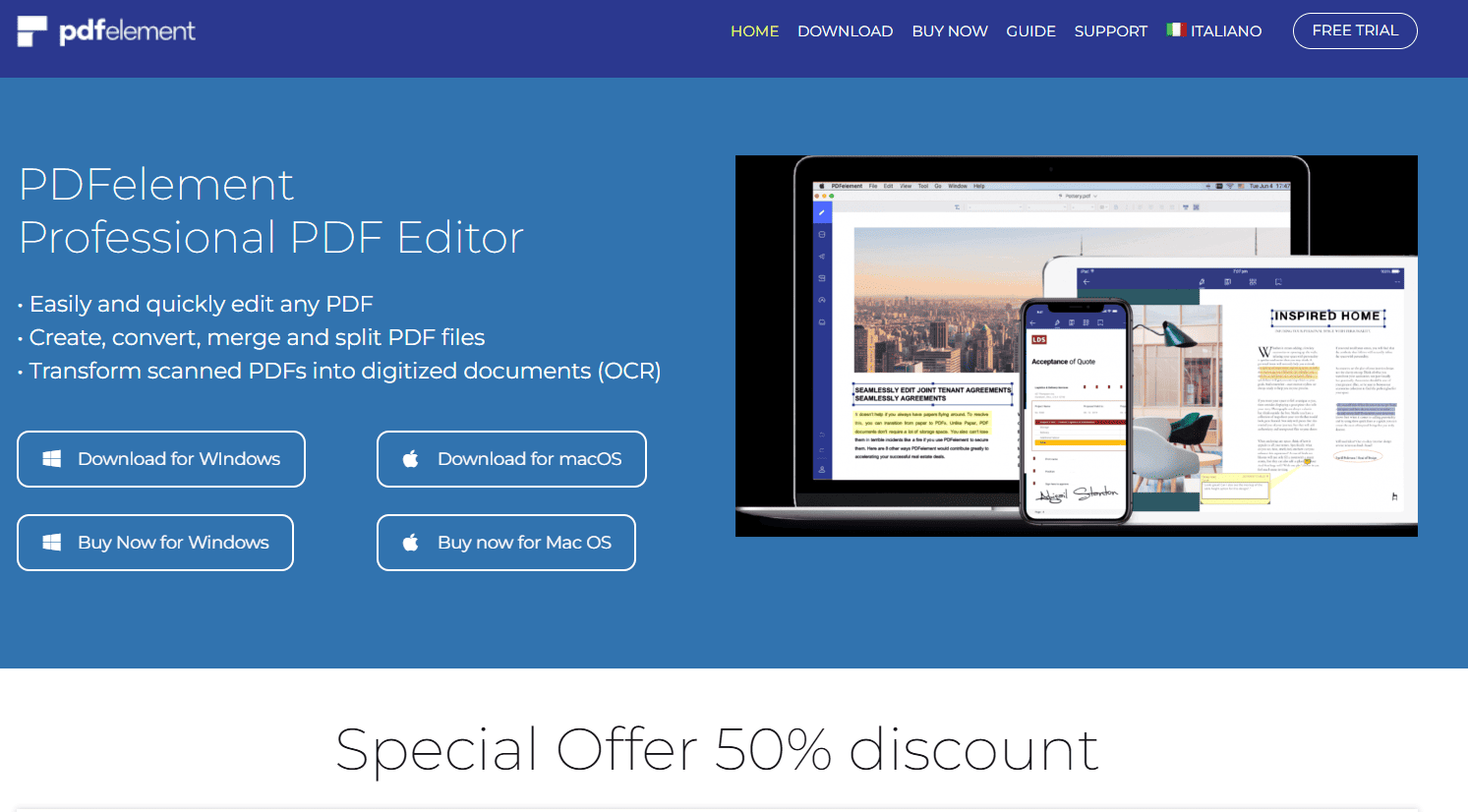
Best for: Users who need integrated AI translation and proofreading.
PDFelement by Wondershare focuses on language. Its AI Translate feature offers a side-by-side view, maintaining the original layout while providing a high-quality translation of the text.
Pros:
Industry-leading AI translation and proofreading.
User-friendly interface across all platforms.
Strong batch processing capabilities.
Cons:
AI features consume "tokens" which may require refills.
Free trial adds watermarks to all documents.
Pricing Summary
Free Plan: 14-day limited trial.
Paid Plan: $11.99/quarter or $79.99/year.
Conclusion
The best PDF editor in 2026 depends on how you work with documents. Free tools are perfect for occasional edits, while AI-driven and premium PDF editors provide advanced features for professionals and businesses. Online solutions like PDF7.app offer convenience and powerful AI tools, while desktop apps like Adobe Acrobat and Foxit deliver enterprise-grade security and performance. Students, creatives, and Mac users also have strong options like UPDF and PDF Expert. By comparing features, pricing, and use cases, you can confidently choose a PDF editor that improves productivity, enhances collaboration, and keeps your documents secure.
Frequently Asked Questions (FAQ)
Q1: Is it safe to use online PDF editors like PDF7.app in 2026? Yes, provided you use reputable tools. Modern platforms like PDF7.app use a "privacy-first" approach, meaning files are processed in the cloud and then immediately deleted, ensuring your data isn't stored permanently on third-party servers.
Q2: Can I edit a PDF for free without watermarks? Yes. PDFgear is currently the best 100% free desktop editor that does not add watermarks. For online tasks, Sejda allows a limited number of watermark-free edits per day.
Q3: What is the benefit of an AI PDF editor? AI-powered editors allow you to "interrogate" your documents. Instead of reading a 100-page manual, you can ask the AI to "summarize the safety protocols" or "extract the pricing table," saving hours of manual work.
Q4: How do I turn a scanned image into editable text? You need a tool with OCR (Optical Character Recognition). Tools like PDF7.app, Adobe Acrobat, and Foxit have built-in OCR that recognizes text in images and converts it into an editable format.
Q5: Which PDF editor is best for Mac users? While many tools are cross-platform, PDF Expert is widely considered the best native experience for Mac and iOS users due to its design and speed.