How Teachers Create and Distribute PDF Worksheets Efficiently
Discover how teachers can efficiently create, optimize, and distribute PDF worksheets for engaging classroom activities. Learn about the best tools and techniques.
 Deepak Gupta17 min read
On this page
- Introduction: The Modern Teacher’s Worksheet Dilemma
- Planning and Designing Engaging PDF Worksheets
- Tools for Creating PDF Worksheets: A Teacher’s Toolkit
- Step-by-Step Guide: Converting Documents to PDF Format
- Optimizing PDF Worksheets for Efficient Distribution
- Distributing PDF Worksheets Effectively
- Advanced Techniques: Enhancing PDF Worksheets
- Troubleshooting Common PDF Issues
- Case Studies: Successful Implementation of PDF Worksheets
- Conclusion: Empowering Teachers with Efficient PDF Workflows
Key takeaways
- This article covers the efficient creation and distribution of PDF worksheets for teachers. It includes tools and techniques for designing engaging worksheets, converting them to PDF format, optimizing for file size and security, and distributing them effectively to students, whether in-person or remotely. You'll learn how to streamline your workflow and enhance student learning experiences.
Introduction: The Modern Teacher’s Worksheet Dilemma
It’s kinda wild how much teaching has changed, right? Remember lugging around stacks of paper? Now, it feels like everything is moving digital and PDFs are like, the thing. Teachers are switching from traditional paper-based worksheets to digital PDF worksheets.
So, why are teachers making this switch? Well, lets dive in:
-
Accessibility is huge. Digital Worksheets can be accessed anywhere, anytime. (Math and Reading Worksheets on Your Tablet - Kumon) Students who are absent? No problem, email it over. Consider a student with a disability that requires larger print; PDFs can be adjusted for readability, though specific features for larger print might depend on the PDF reader and the original document’s creation. (Why PDF Accessibility is Important For Higher Education)
-
No more paper cuts. Seriously, think of the trees! Plus, the cost savings on printing adds up, especially for teachers who often dip into their own pockets. (Rising Cost of School Supplies Increases Burden on Teachers | NEA)
-
Easy to share– with some caveats. While PDFs are generally universal and open on most devices, minor display differences can still occur, especially with complex interactive elements or specific font rendering. Teachers might still encounter situations where a document doesn’t look exactly the same everywhere, requiring careful design.
-
PDFs are kinda the universal language. You know, you can open them on pretty much any device without weird formatting issues.
-
Selling on Etsy? Some teachers are even creating worksheets and selling them online for extra income. This YouTube video shows how to create math worksheets for sale on Etsy: Quick and Easy Way to Create Math Worksheet Printables for Your Etsy Store.

But it isn’t all sunshine and roses. Teachers are facing new challenges, like making sure kids actually do the work when it’s online and figuring out the best ways to create and distribute these worksheets efficiently. Next, we’ll get into how they are doing it.
Planning and Designing Engaging PDF Worksheets
Okay, so you want to make worksheets that don’t bore your students to tears? It’s more than just slapping some questions on a page, ya know?
First things first: what are you actually trying to teach? It’s gotta align with the curriculum, obviously. But think about the specific goals.
-
Are you aiming for recall? Application? Analysis? Make it crystal clear for yourself (and maybe even for the students!).
-
Set clear goals that are measurable. Instead of “understand fractions,” try “solve fraction addition problems with common denominators.” It gives everyone something concrete to aim for.
-
Think about how you’ll know if they get it. Is it a quiz? A project? Their ability to explain it to a classmate? That assessment piece will inform your worksheet design, big time.
Okay, content time. But it can’t just be dry facts.
-
Age-appropriateness is huge. What flies for high schoolers will be a total snooze (or worse, confusing) for elementary kids.
-
Visual appeal matters, too. A wall of text? No thanks. Use images, different fonts, maybe even a splash of color. While digital distribution often removes printing cost concerns, if a teacher chooses to print for personal use or specific classroom needs, color printing can still be a consideration.
-
Don’t forget accessibility. Can students with visual impairments read it? Is the language clear for esl learners? Thinking about these things upfront makes a big difference.
Let’s face it, worksheets can be passive. But they don’t have to be!
-
Fillable forms are your friend, especially for digital worksheets. Makes grading easier too!
-
Check boxes for multiple choice? Obvious, but effective.
-
Get fancy with drag-and-drop activities. These can be surprisingly engaging, even for older students.

Planning is key. Next up, we’ll dive into the actual tools and software you can use to bring these worksheet ideas to life.
Tools for Creating PDF Worksheets: A Teacher’s Toolkit
Okay, so you’ve got your plan, now it’s time to get your hands dirty with some tools. What’s a teacher to do? Well, there’s a bunch of dedicated worksheet generators out there, each with their own pros and cons.
Think of these as specialized tools designed specifically for creating worksheets. No messing around with general-purpose software, these guys are built for one thing and one thing only. They often come packed with features tailored for educators, like pre-made templates for different subjects, automatic question generation, and the ability to easily create answer keys.
- Pros: Obvious one is ease of use. These tools are usually pretty intuitive, even if you’re not a tech wizard. They’re designed to streamline the worksheet creation process, saving you time and effort. Plus, you often get access to a library of pre-designed templates and resources, which can be a real lifesaver when you’re short on time.
- Cons: The biggest downside is often limited customization. You might be stuck with the templates and question types offered by the software, which can be frustrating if you have a very specific vision in mind. Cost can also be a factor, as some of the more powerful worksheet generators come with subscription fees.
Okay, so what makes a worksheet generator stand out from the crowd? Here’s a few key features to keep an eye on:
- Automatic question generation: This is huge for subjects like math and science, where you need to create lots of similar problems with varying numbers. Some tools can even generate word problems, which is a major time-saver.
- Template libraries: A good selection of templates can give you a head start on worksheet design. Look for templates that are customizable and cover a range of subjects and grade levels.
- Interactive elements: Some worksheet generators let you add interactive elements like drag-and-drop activities, fill-in-the-blanks, and multiple-choice questions. These can make your worksheets more engaging for students, especially when you’re planning on assigning them digitally.
- Integration with other tools: Does the worksheet generator play nicely with your learning management system (LMS) or other tools you use in the classroom? Seamless integration can save you a lot of time and hassle. An LMS (Learning Management System) is an online platform used to manage and deliver educational courses and training programs.
- Accessibility options: Gotta make sure the worksheets are accessible to all students, right? Look for features like adjustable font sizes, alt text for images, and compatibility with screen readers.
Let’s be real, teachers are busy folks. You don’t have time to wrestle with complicated software. That’s why ease of use is such a critical factor when choosing a worksheet generator.
- Intuitive interface: The software should be easy to navigate, with clear menus and a logical workflow. You shouldn’t have to spend hours learning how to use it.
- Drag-and-drop functionality: Drag-and-drop interfaces make it easy to add and arrange elements on your worksheet. This can save you a lot of time compared to manually formatting everything.
- Real-time preview: A real-time preview lets you see exactly what your worksheet will look like as you’re creating it. This helps you avoid formatting errors and make sure everything is aligned properly.
- Help and support: If you do get stuck, it’s important to have access to good help and support resources. Look for tools that offer tutorials, FAQs, and responsive customer support.
Examples of Worksheet Generators:
- Teachers Pay Teachers (TpT) tools: While primarily a marketplace, many creators offer resources that integrate with tools like Boom Cards, which are interactive digital task cards.
- Canva: Offers a vast library of templates and design elements, making it easy to create visually appealing worksheets. You can then export them as PDFs.
- Google Forms/Slides: While not dedicated worksheet generators, they can be adapted to create interactive worksheets that can be exported as PDFs.
- Dedicated platforms like Quizizz or Kahoot!: These are more for creating interactive quizzes and games, but the content can often be exported or adapted for worksheet use.

So, dedicated worksheet generators is a double-edged sword. They can save you time and effort, but you might sacrifice some customization options. Ultimately, the best tool for you will depend on your specific needs and preferences.
Okay, so what if you want to tweak a worksheet after you’ve created it? That’s where online pdf editors come in. We’ll dive into those next.
Step-by-Step Guide: Converting Documents to PDF Format
So, you’ve got your worksheet all ready to go, but it’s, like, a Word document or something? You’re gonna need to convert it to a pdf! Luckily, it’s usually pretty straightforward.
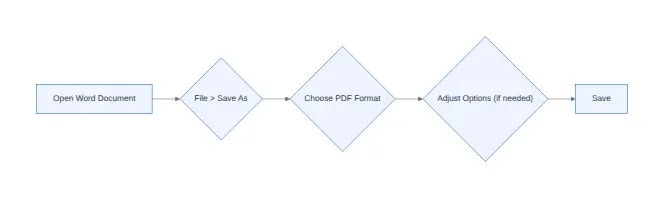
Word makes it pretty easy these days.
- Using “Save As”: Seriously, just go to “File” then “Save As” and choose “pdf” from the dropdown menu. Boom, done. Make sure you pick a descriptive file name though, you know, so you can find it later.
- Quality Settings: Before you hit save, poke around in the “Options” button (it’s usually near the save button). You can tweak the image quality and stuff. For worksheets, “Standard” is usually fine, but if you’ve got a lot of detailed images, bump it up to “High Quality” so it will be more clear.
- Troubleshooting: Okay, sometimes things go wrong. If your fonts look weird in the pdf, make sure they’re embedded in the Word document before you convert. Go to File > Options > Save, then check the box that says “Embed fonts in the file.” That usally fixes it.
Google Docs is pretty similar, but slightly different.
- Downloading as PDF: Go to “File,” then “Download,” and then pick “pdf Document (.pdf).” Easy peasy. Google’s pretty good at making it look the same as your doc.
- Print to PDF (the backup): Sometimes, if you’re having weird formatting glitches, try “File” then “Print,” and then choose “Save as pdf” as your printer. It’s like a workaround, but it often fixes things.
- Images and Fonts: Google Docs usually handles images and fonts well automatically. But, if you’re using some super obscure font, it might get substituted. Double-check the final pdf to make sure everything looks right.

Converting Image Files (JPG) to PDF:
- Online Converters: There are tons of free online jpg to pdf converters. Just google it. Smallpdf and ilovepdf are two good options. Drag and drop your image, and it spits out a pdf.
- Maintaining Quality: Watch out, though, because some converters compress the heck out of your images. Try a few different ones and see which one gives you the best quality pdf.
- Batch Conversions: Got a whole folder of images? Some online tools let you convert a bunch at once, which is a huge time-saver.
Next up, we’ll talk about how to optimize those PDFs for easy sharing and printing.
Optimizing PDF Worksheets for Efficient Distribution
Okay, so you’ve created this awesome worksheet, but now you need to get it out there without it taking up a ton of space or being easily, um, borrowed without permission, right? Let’s talk optimization.
-
Compressing like a Pro: Big files? No one’s got time for that.
- Online compression tools are your friend. Smallpdf, ilovepdf, there’s a bunch. Just drag, drop, and bam, smaller file.
- Think about image resolution too. Do you really need 300 dpi for a worksheet that’s mostly text? Probably not. Lower it a bit and save space.
- Get rid of stuff you don’t need. Extra margins, blank pages, random doodles (unless they are a part of the lesson, of course!). You can often do this in PDF editors like Adobe Acrobat by deleting pages or using crop tools to adjust margins.
-
Lock it Down (Security Features): Keep those worksheets safe from, shall we say, unauthorized modifications.
- Password protection: Obvious, but essential. Set a password so only your students (or paying customers, if you’re selling on etsy) can open it.
- Restrict printing and editing: Most pdf editors let you disable these features. Prevents students from, like, copy-pasting the answers into a group chat.
- Watermarking: Slap your name or school logo on there. Subtle, but effective. Deters plagiarism.
-
Accessibility isn’t Optional: Gotta make sure everyone can use it.
- Alt text for images: Screen readers need this. Describe what the image is showing.
- Proper heading structure: Use headings (h1, h2, h3) to organize the content. Makes it easier for screen readers (and everyone else) to navigate.
- Color contrast: Make sure the text is readable against the background. Avoid light gray on white, for example. Tools like the WebAIM Contrast Checker can help you ensure sufficient color contrast.

Imagine a school district rolling out digital worksheets for remote learning. Compressing the files saves bandwidth and storage costs across thousands of students. Or a legal firm using password protection to secure sensitive training documents distributed to junior associates. These simple steps have big impact.
So, that covers optimizing your pdf worksheets. What’s next? Well, getting them in front of students, of course! We’ll dive into distribution methods next.
Distributing PDF Worksheets Effectively
Distributing worksheets…sounds easy, right? But how do you make sure they actually get to your students and don’t just languish in some forgotten digital folder?
-
Email Distribution: Think of it as the OG digital delivery method.
- Attaching the PDF is the obvious part, but consider naming conventions. “HistoryWorksheet_Chapter3_Smith” beats “Document1” any day. It seems minor, but it’s about making it easy for students to organize.
- Email lists are your best friend. Most learning platforms let you create groups, so you aren’t manually entering 30+ email addresses every time. Saves time, prevents errors.
- Tracking submissions can be tricky. Asking students to reply with the completed worksheet or use a naming convention for their submissions (e.g., “HistoryWorksheet_Chapter3_Smith_Completed”) can help, but it’s far less streamlined than other methods. This approach can become messy quickly, requiring manual organization and potentially leading to missed submissions.
-
Learning Management Systems (LMS) Integration: This is where things get a lot smoother, offering a significant advantage over email.
- Upload the worksheet to platforms like Canvas, Moodle, Blackboard, etc. Most LMS’s have a dedicated “Files” or “Resources” section.
- Create an assignment linked to the PDF. This way, students submit directly through the platform, eliminating the need to sift through email threads and providing a centralized location for all assignments.
- Grading and feedback become streamlined. Many LMS’s let you annotate directly on the PDF, add comments, and assign grades all in one place, offering a more integrated and efficient feedback loop than email.
-
Cloud Storage solutions (e.g., Google Drive, Dropbox): Good for sharing, but permission settings are key.
- Generate a shareable link for the PDF. Easy to post on a class website or in an email.
- Set the right permissions: “View only” prevents students from accidentally editing the original. “Comment only” lets them add annotations without changing the source.
- Collaborative editing can be useful for group projects. But be careful! Make sure everyone understands the rules of engagement before opening the floodgates. Rules of Engagement for Collaborative PDF Editing:
- Designate a leader: One student is responsible for final saves and ensuring everyone’s contributions are included.
- Use comments for suggestions: Instead of directly editing, students should use the comment feature to suggest changes.
- Establish a clear workflow: Decide who works on which section and when.
- Regularly save and back up: Prevent data loss by saving frequently and making backup copies.
-
Printing and Physical Distribution: Yes, sometimes you do need paper.
- Optimize the PDF for printing: Check margins, font sizes, and image resolution. Nothing worse than a worksheet that gets cut off at the edges.
- Reduce paper waste by printing double-sided. Obvious, but often overlooked.
- Managing physical copies: Have a designated spot for students to pick up and drop off worksheets. Sounds old-school, but it prevents chaos.

Those scenarios really highlight the need for a multi-faceted approach. A small tutoring center might rely heavily on email and printed copies, while a large university will almost certainly use an LMS. Point is, flexibility is key.
So, you’ve got the worksheets out there…now how do you actually make them better? Next, we’ll look at ways to enhance those PDFs with interactive elements and multimedia.
Advanced Techniques: Enhancing PDF Worksheets
Did you know that some teachers are turning their worksheets into interactive goldmines? Seriously, it’s not just about static pages anymore. You can seriously level-up your PDF worksheets with some pretty neat tricks.
-
PDF Forms for Easy Data Collection: Forget printing and manually grading papers! Creating fillable forms within your PDFs lets students type in their answers directly. You can then easily collect their responses digitally, making grading a breeze. Think about it: automatically collecting data from hundreds of student quizzes into a spreadsheet… pretty cool, right?
-
Multimedia? Yes, Please!: Why stick to just text and images? Embedding videos, audio clips, or even interactive simulations can seriously boost engagement. Imagine a history worksheet with a short video clip of a historical event, or a music worksheet with audio samples. This works for corporate training too; imagine embedding a short product demo video directly into a training pdf for new sales hires. How to Embed Multimedia: Many advanced PDF editors (like Adobe Acrobat Pro) allow you to embed multimedia. You can typically do this by going to “Tools” > “Rich Media” and then selecting the type of media you want to add. You’ll then be prompted to select your file and define the area where it will appear on the page.
-
Connect to the Wider World with links and codes: Link your worksheets to other online resources, like articles, websites, or even virtual field trips. QR codes are another gem, linking to additional content or assessment platforms with a quick scan. Think of a language worksheet with a qr code that links to a pronunciation guide. Generating QR Codes: You can easily generate QR codes using free online tools like QR Code Generator or by using features within some design software. Simply input the URL of the content you want to link to, and the tool will create a scannable QR code image that you can then insert into your PDF.

These techniques aren’t just for teachers either. Consultants, trainers, and even ceos can use them to create more engaging and effective materials. It’s about making information dynamic and accessible!
So, you’ve enhanced your worksheets, now what about making them collaborative? Let’s jump into how to use PDFs to foster teamwork and peer learning.
Troubleshooting Common PDF Issues
Ever opened a PDF and the fonts are all messed up, or the images look like they were taken with a potato? Yeah, it’s annoying. Let’s troubleshoot some common PDF issues so your worksheets look exactly how you intended.
Fonts acting up can be a real headache. Here’s how to tackle ’em:
- Embedding fonts is key. If you don’t, the PDF might substitute a different font, which can totally change the look and feel. Most programs, like Word, have an option to embed fonts when saving as a pdf.
- Font substitution happens when the reader doesn’t have the font installed on their computer. This is why embedding is so important.
- As a last resort, consider converting text to outlines. This turns the text into shapes, so it’ll look the same on any device. But, you can’t edit the text afterwards, so save it for the final version. How to Convert Text to Outlines: In Adobe Acrobat Pro, you can go to “Tools” > “Edit PDF” and then select “Convert to Outline” from the advanced editing options. Other PDF editors may have similar features.
Pixelated images? Nobody wants that.
- Adjusting resolution is crucial. Higher resolution = better quality, but also bigger file size. Find a balance. For most worksheets, 150-300 dpi is usually plenty.
- Compressing images can help reduce file size without sacrificing too much quality. There are tons of online tools for this. Online Image Compression Tools: Websites like TinyPNG, Compressor.io, and iLoveIMG offer free image compression services.
- Using the right file format matters. JPEGs are good for photos, but PNGs are better for graphics and text because they don’t lose quality when compressed.
A huge PDF is a pain to email, download, and store.
- Compressing files is your first line of defense. Online tools can work wonders.
- Removing unnecessary elements like extra blank pages, high-res images, or random doodles can drastically shrink the file size.
- Optimizing for web viewing often means lowering the resolution and using fast web view, which makes the PDF load faster online. Fast Web View: This feature, available in PDF software like Adobe Acrobat, reorganizes the PDF so that it can be displayed page by page as it downloads, rather than waiting for the entire file to load. To enable it, go to File > Save As Other > Optimized PDF (in Acrobat Pro) and look for the “Fast Web View” option.

Fixing these issues ensures your pdf worksheets look professional and are easy to use. Next up, we’ll consider how to make those PDFs accessible.
Case Studies: Successful Implementation of PDF Worksheets
Okay, so you’re probably thinking, “Do teachers actually use these PDF tricks?” Short answer: Absolutely! Let’s look at some real-world wins:
-
Elementary School: Imagine a first-grade teacher using drag-and-drop PDFs to teach vowel sounds. Kids love it, and she saves a ton on printing. Plus, its way easier to sanitize a tablet then a stack of papers after little Timmy sneezes.
-
High School: A history teacher creates password-protected PDFs with embedded video clips, so students cant just copy answers and share them. It’s a game changer in preventing cheating, or so he hopes anyway.
-
Corporate Training: Remember that product demo video we talked about? Yeah, that’s saving companies money and time as it cuts down on basic training costs.
So, what about collaborating on these worksheets? Let’s see how pdfs can foster teamwork.
Conclusion: Empowering Teachers with Efficient PDF Workflows
So, we’ve covered a LOT. Feel like you’re ready to ditch the paper stacks?
- PDFs boost efficiency: Teachers can save time on creation, distribution, and grading. Think about reclaiming those weekend hours!
- Engagement goes up: Interactive elements and multimedia keep students hooked.
- Accessibility improves: PDFs can be made accessible for all learners, regardless of their needs.
The future? ai could generate customized worksheets and augmented reality could bring lessons to life. For instance, ai might analyze student performance data to create personalized practice problems, while AR could allow students to interact with 3D models or historical scenes directly from their worksheets. The possibilities are endless, and honestly– it’s kinda exciting.