AI Image Enhancement Tools for Document Designers and PDF Power Users

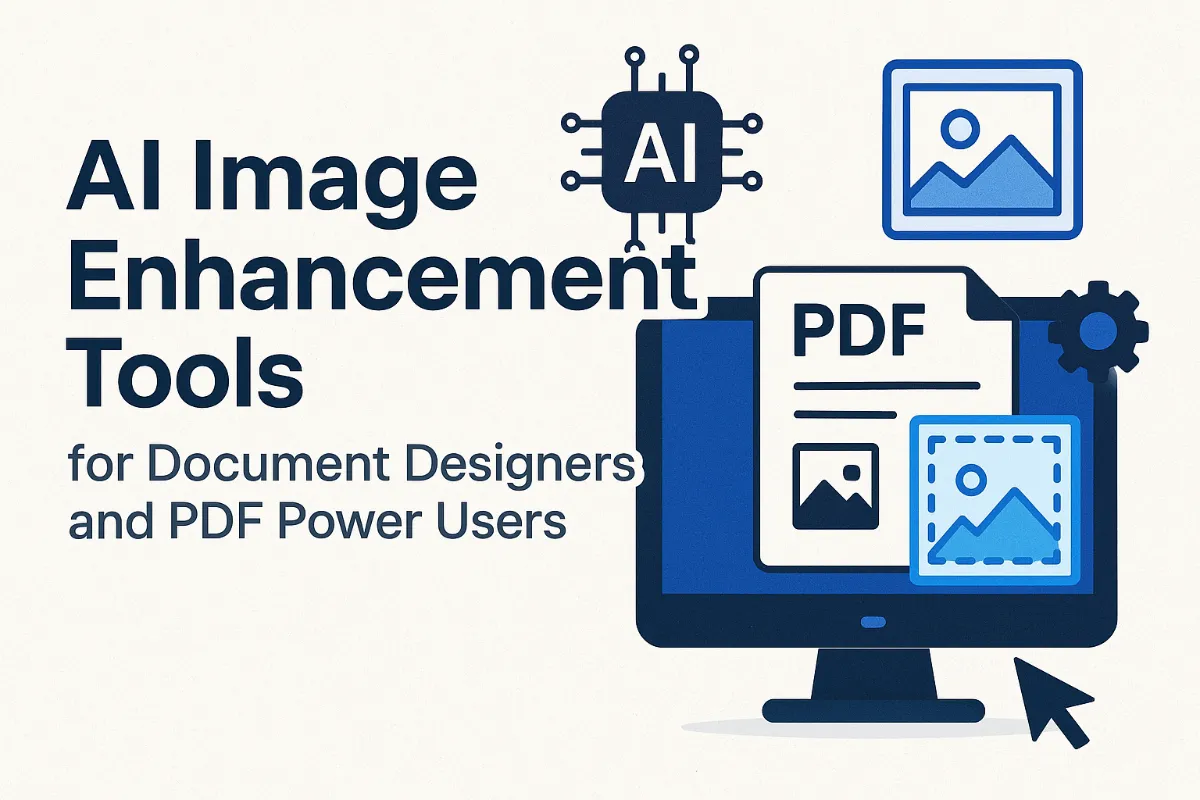
AI isn’t just transforming how we read documents — it’s now revolutionizing how we design them. Whether you're creating a business report, eBook, user manual, or online presentation, visuals matter. Clean, enhanced images turn long PDFs into engaging, professional assets.
This guide explores the best AI-powered image enhancement tools for creators who work with documents—especially PDF7.app users who already edit, compress, merge, and now chat with their PDFs.
Snapcorn Launches Free AI Image Enhancement Suite — Already used by 100,000+ creators to edit over 3.5 million images. Snapcorn’s privacy-first tools are built for creators handling sensitive assets.
What Are AI Image Enhancement Tools?
These tools use machine learning to:
Remove messy backgrounds
Sharpen blurry scans
Colorize black & white historical images
Restore degraded or damaged visuals
Resize images for better layout in documents
Unlike Photoshop, these tools require zero design skill. Just upload → enhance → download.
For document creators, this means:
Faster workflows
Higher visual quality
Better readability and engagement
No software downloads
Table of Contents
Why Image Enhancement Matters for PDF Creators
When to Use AI vs Manual Editing
Best Tools: Feature & Use Case Comparison
Full Breakdown of the Top Tools
Snapcorn for PDF Creators: Real Use Examples
Security & Privacy: A Must for Document Professionals
FAQs for PDF7.app Users
1. Why Image Enhancement Matters for PDF Creators
If your PDFs include:
Product images
Charts or infographics
Screenshots from older platforms
Historical or scanned materials
...enhancement can improve clarity, visual appeal, and reader trust.
Imagine an eBook with crisp diagrams or a restored photo in a case study. This boosts professionalism and engagement—especially for public-facing documents.
2. AI vs Manual Editing
| Traditional Software | AI Tools Like Snapcorn |
|---|---|
| Steep learning curve | Beginner-friendly |
| Expensive subscriptions | Mostly free |
| Time-consuming workflows | 1-click enhancement |
| Desktop-only | Browser-based |
| May store uploaded files | Snapcorn auto-deletes content |
3. Comparison: Best AI Image Tools for Document Creators
| Tool | Features | Free Tier | Best For |
|---|---|---|---|
| Snapcorn | Background remover, upscaler, colorizer, restoration | Yes (no login) | PDF creators, case studies, visuals |
| Canva AI | Templates, filters, smart resize, AI art | Limited | Presentations, internal PDFs |
| Adobe Express | Animate, crop, stylize, integrated with Creative Cloud | Limited | Enterprise teams, branded reports |
| Fotor | Smart filters, face retouch, HDR fix | With watermark | Magazine-style documents |
| Let’s Enhance | AI upscaling and print-quality exports | Credits model | Print PDFs, marketing brochures |
| Cleanup.pictures | Remove visual clutter | Yes | Data reports, social media inserts |
| ImgUpscaler | Enhance faces, anime art, digital docs | Yes | Visual PDFs, creative illustrations |
Comprehensive AI Image Tool Research – Full breakdown of the image generation + editing space for serious content professionals.
4. Tool Descriptions
1. Snapcorn
Website: https://snapcorn.com
Key Features:
Remove background from product shots
Restore black-and-white company history images
Upscale small graphics for better resolution
Free Tier: Yes — no sign-up required
Best For: Clean visuals in case studies, eBooks, PDF reports
2. Canva AI
Key Features:
- Templates, image filters, smart resize
Free Tier: Limited free tier with watermark removal in Pro
Best For: PDF covers, branding pages, pitch decks
3. Adobe Express
Key Features:
- Resize, animate, export branded visuals
Free Tier: Yes (login required)
Best For: Adobe users in corporate workflows
4. Fotor
Key Features:
- Retouch headshots, enhance contrast for image-heavy PDFs
Free Tier: With watermark
Best For: Presentation-ready PDF visuals
5. Let’s Enhance
Key Features:
- Print-grade resolution enhancement, batch processing
Free Tier: Yes with limited credits
Best For: PDFs for events, print, signage
6. Cleanup.pictures
Key Features:
- Remove watermarks or visual noise
Free Tier: Yes
Best For: Editing research or financial visuals
7. ImgUpscaler
Key Features:
- Detail restoration in illustrations, anime, diagrams
Free Tier: Yes
Best For: Designers and educators inserting graphics
5. Snapcorn + PDF7: A Perfect Match
As a PDF7.app user, you already work with compressed, merged, or AI-interacted documents. But what about the images you insert?
Use Snapcorn to:
Clean up blurry logos or charts before inserting
Colorize and restore historical or scanned pages
Remove watermarks for case study visuals
Fix screenshots that otherwise lower document quality
This workflow boosts document credibility and visual polish.
6. Privacy & Security
Most PDF editors handle sensitive files. So it’s essential your image tools respect privacy.
Snapcorn: Processes images in-browser, no storage
Let’s Enhance: Temporarily stores files for queued jobs
Adobe Express: Follows Adobe’s enterprise-grade policies
Snapcorn leads in privacy by never saving uploads.
7. FAQs for PDF7 Users
Q: Can I restore old scanned documents?
Yes — Snapcorn and Let’s Enhance are perfect for OCR prep.
Q: Is Snapcorn really free?
Yes. All core tools are free and unlimited.
Q: What’s best for replacing outdated visuals in PDFs?
Use Cleanup.pictures or Snapcorn to clean and upscale.
Q: Can I use these tools before importing images into PDF7?
Absolutely. Prep your visuals outside, then drop them into your layout or editing workflow.
Final Word for PDF Creators
PDF7.app streamlines the structure of your documents. Now with tools like Snapcorn, you can streamline your images too.
No design software. No learning curve. Just better, faster visuals—ready for publishing.
Pair smart PDF editing with smart image enhancement. Your audience will notice the difference.